Install the script
The packs work in any tool — but in Obsidian Excalidraw, the Comic Strip Director script builds the whole strip for you: panels, your cast, and FX. Here’s the full walkthrough.
Install from the Script Library — freeOne-click install — it's in the official Script Library
Comic Strip Director is in Excalidraw's built-in Script Library: install it from inside Obsidian (Part 3) and grab the free starter pack — core cast of 8, POW! ZAP! BOOM!, and all 30 layouts — with one button (Part 4).
All the steps
33 steps across 6 parts. Skim it, then follow the screenshots below.
- 1 Install the Excalidraw pluginGrab the Excalidraw plugin from Obsidian’s community store. 6 steps
- 2 Point Excalidraw at a scripts folderTell Excalidraw where scripts live — an
Excalidraw/Scriptsfolder. 6 steps - 3 Install Comic Strip Director from the Script LibraryOne-click install — the script is in Excalidraw’s official library. 5 steps
- 4 Get the free starter packOne button: the free core cast, 3 FX and all layouts install themselves. 3 steps
- 5 Install a strip pack & make your first stripDrop bought packs in Scripts, import, then pick who × what × action. 8 steps
- 6 Remove a packChanged your mind? Packs uninstall cleanly from the Manage panel. 5 steps
Install the Excalidraw plugin
- 1
Open your vault in Obsidian and click the Settings gear (bottom-left).
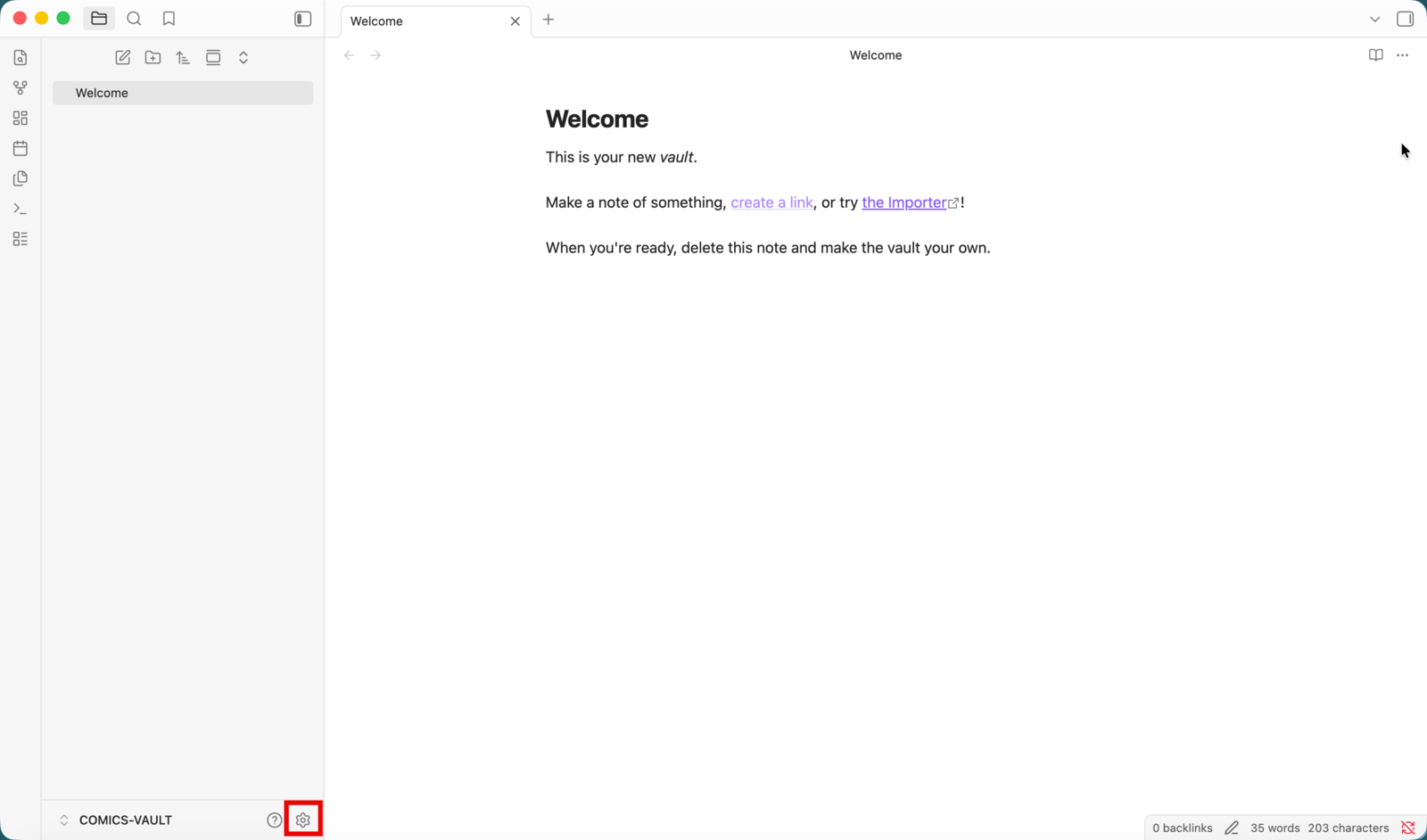
- 2
Go to Community plugins 1 and click Turn on community plugins 2 to leave Restricted Mode.
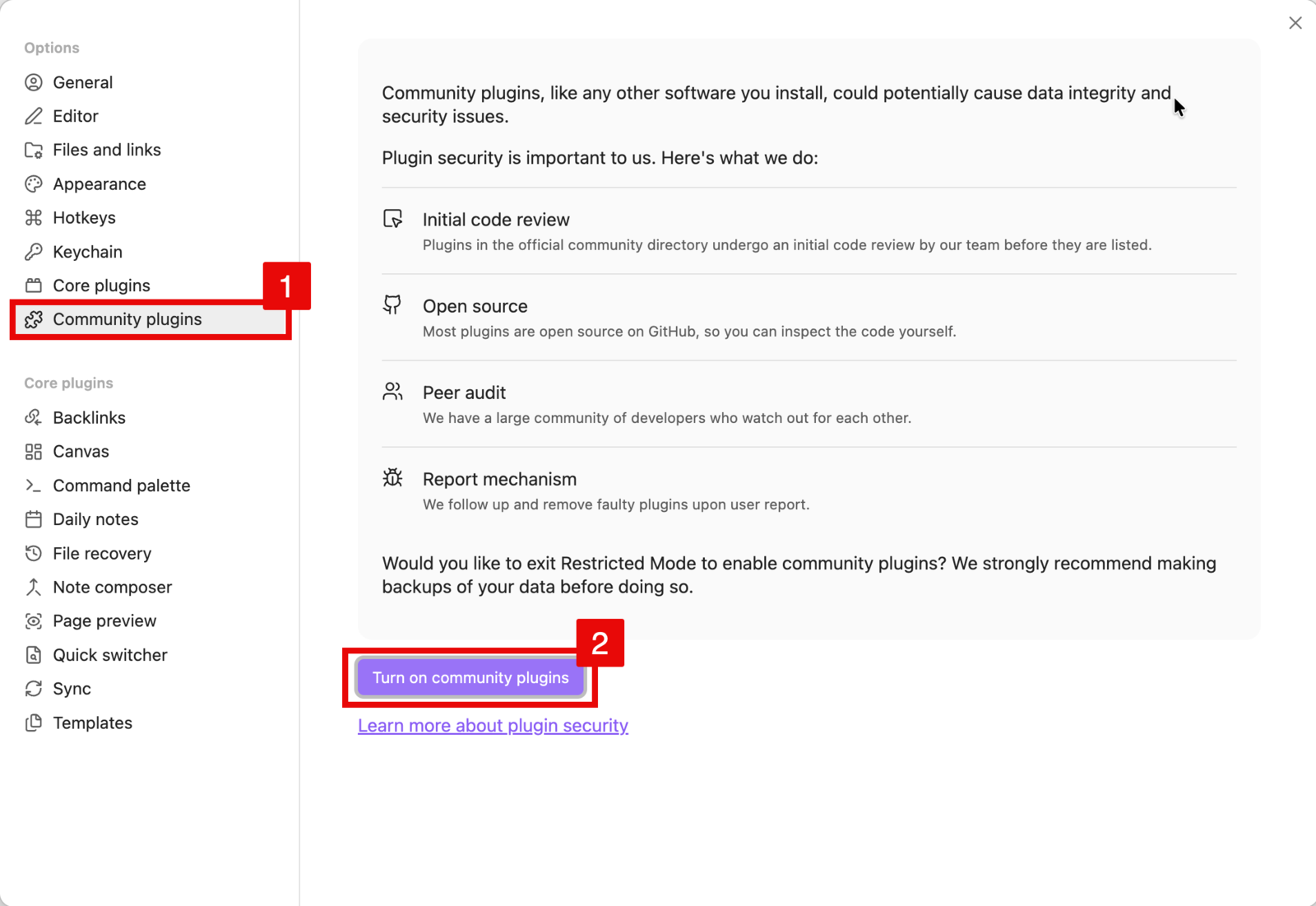
- 3
Click Browse to open the plugin store.
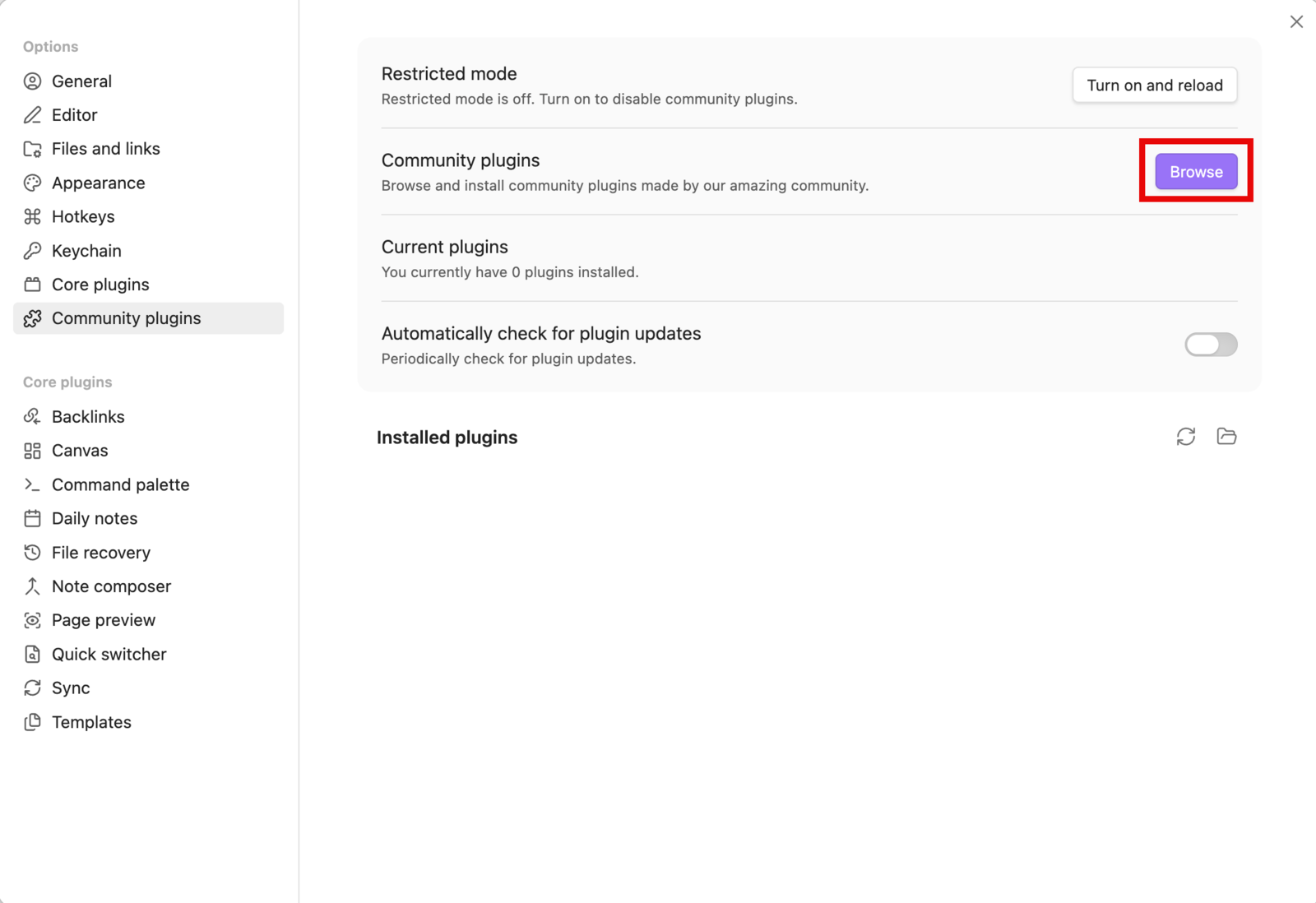
- 4
Search for Excalidraw (by zsviczian) and select it.
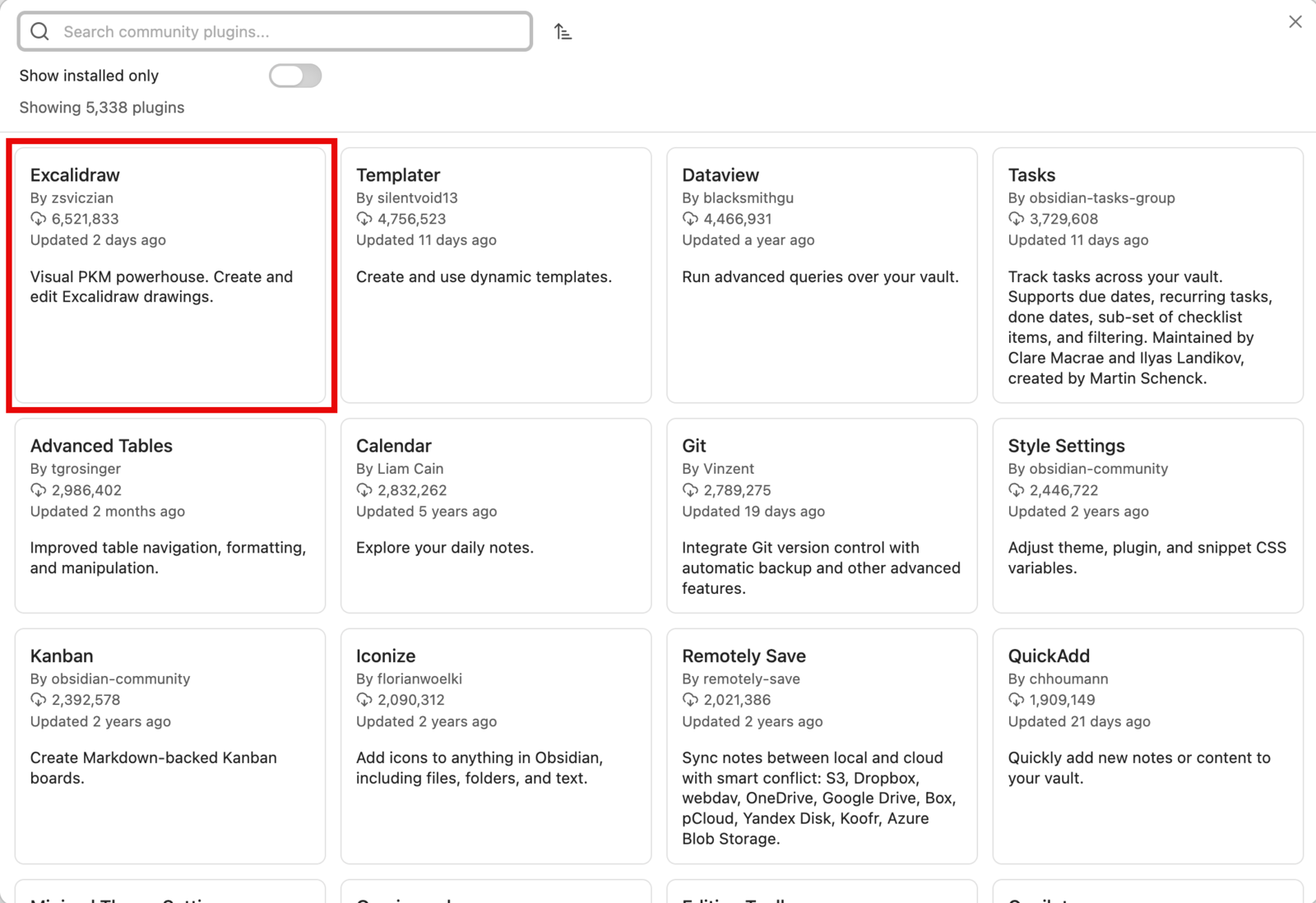
- 5
Click Install.
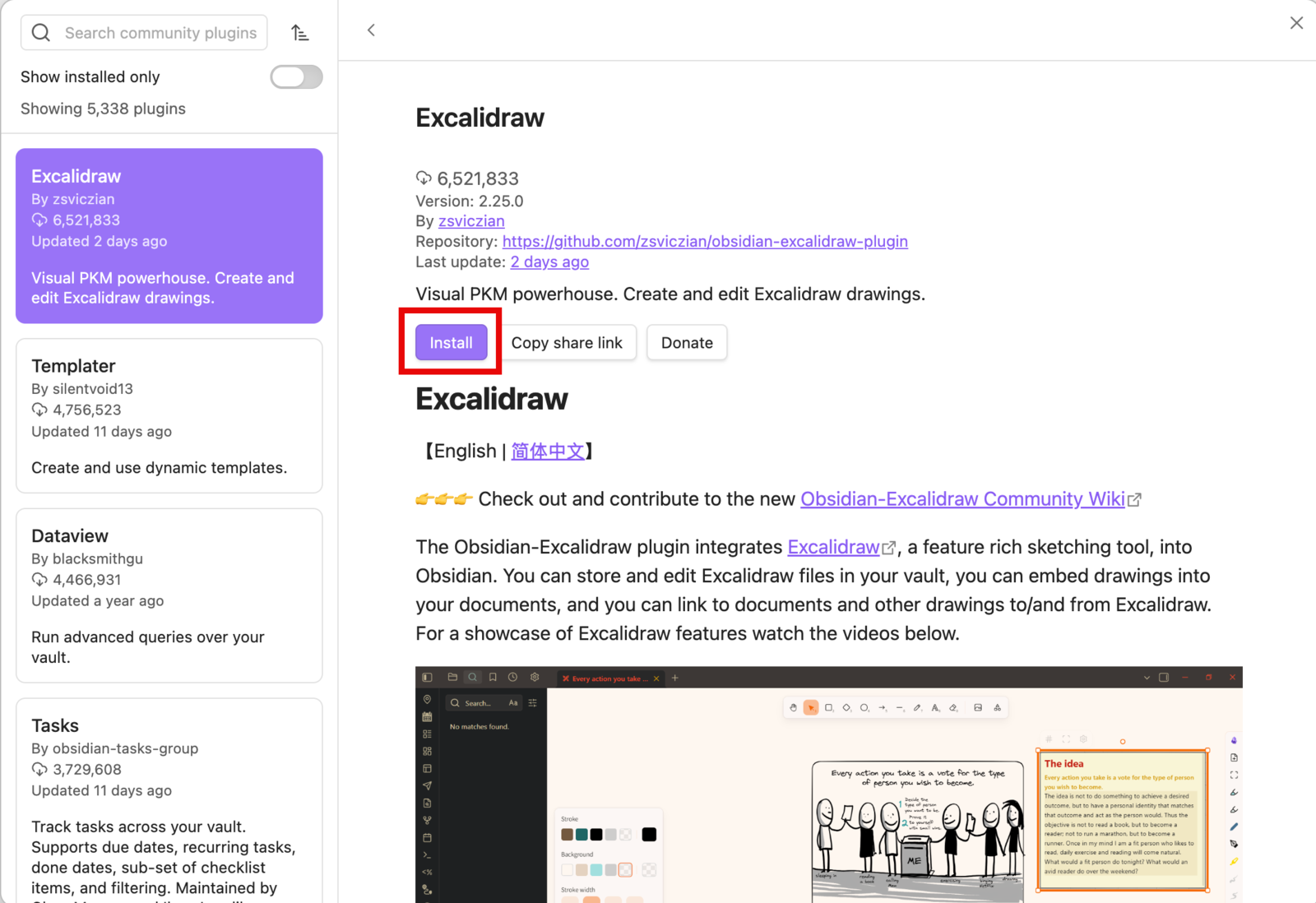
- 6
Once it finishes installing, click Enable.
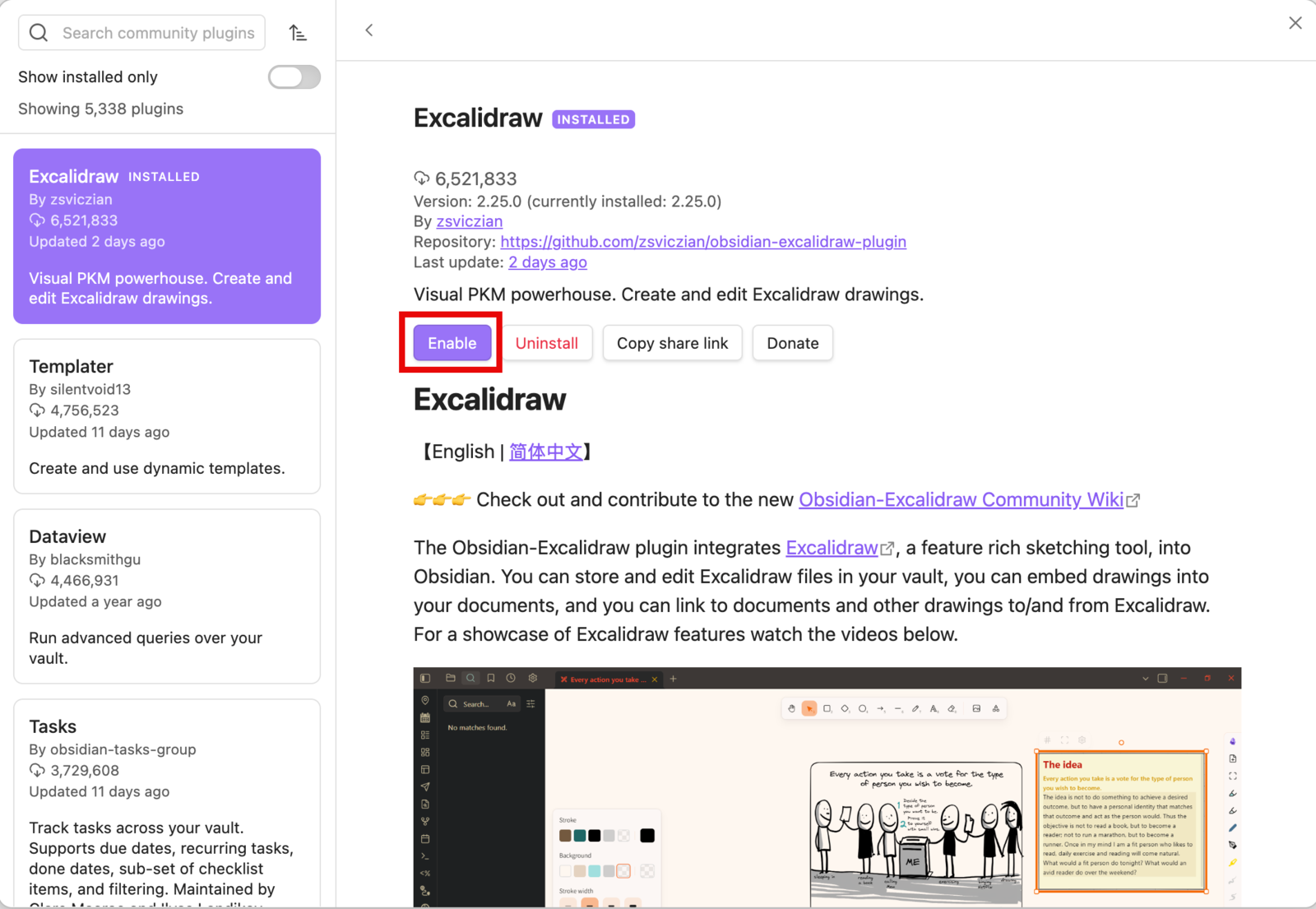
Point Excalidraw at a scripts folder
- 7
The Welcome to Excalidraw splash appears 1 — close it with the × top-right 2.
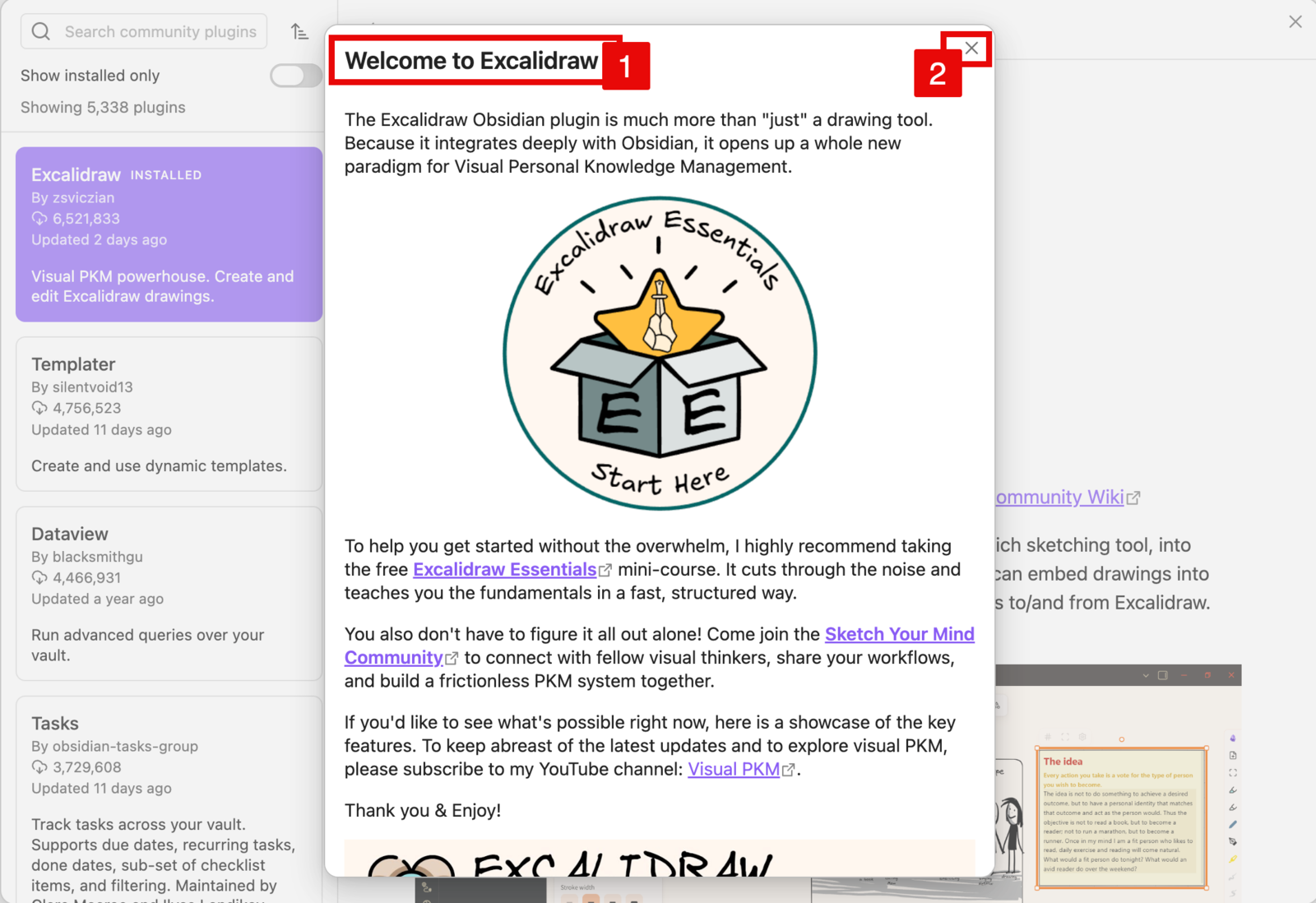
- 8
Excalidraw now shows as installed 1 — close the plugin store with the × 2.
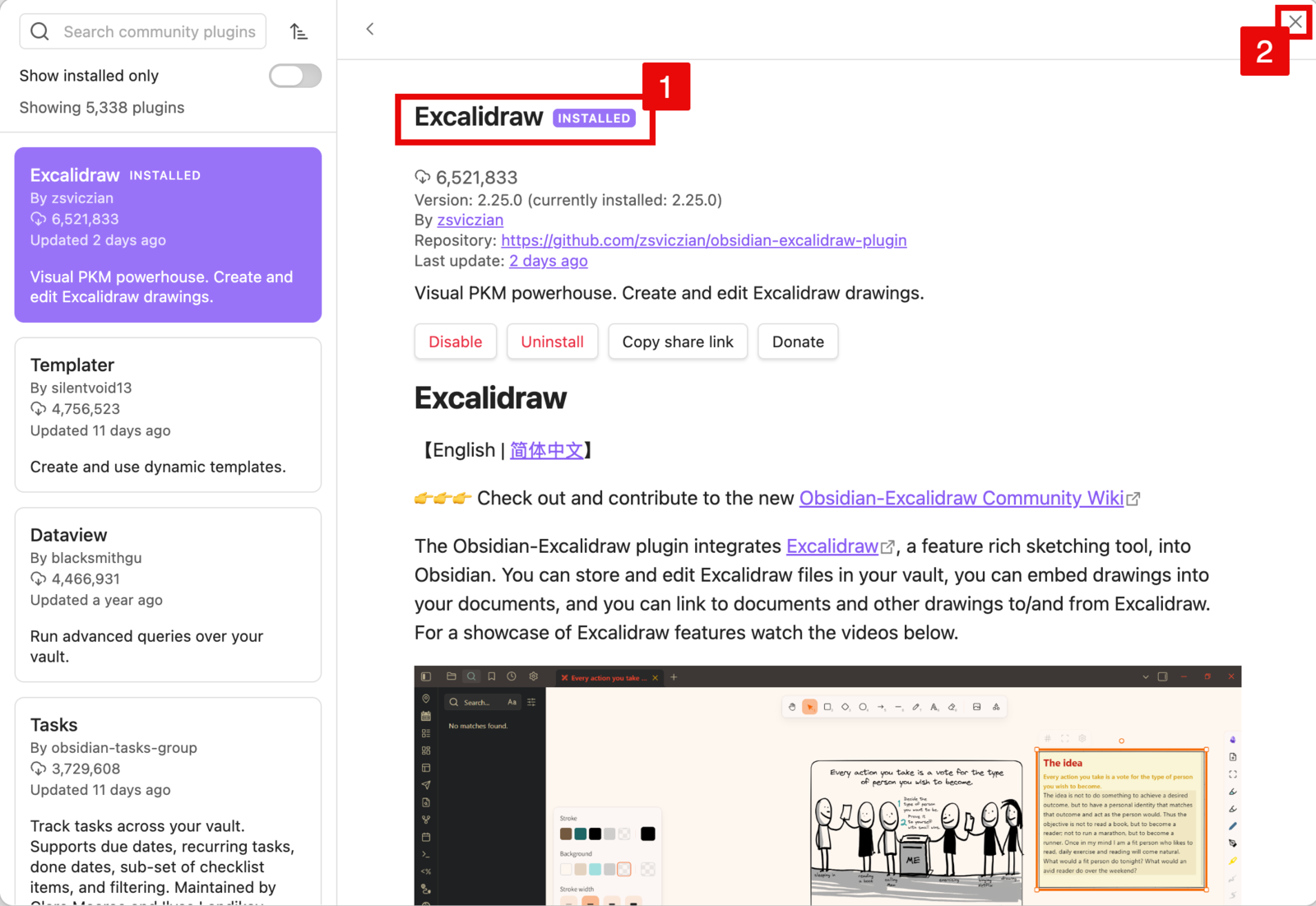
- 9
In Settings, scroll the left sidebar down to Excalidraw (under Community plugins) and open it.
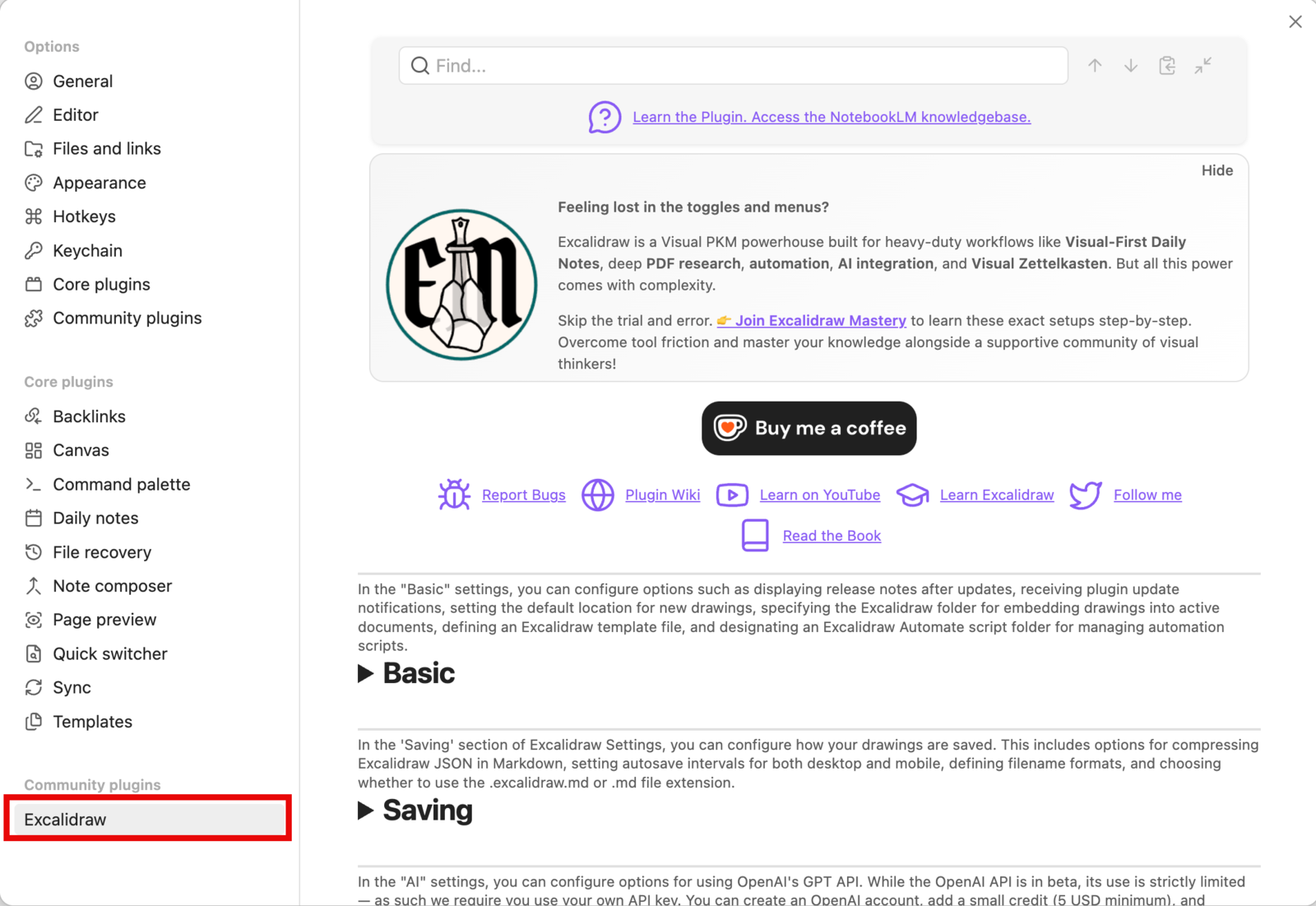
- 10
Expand the Basic section.
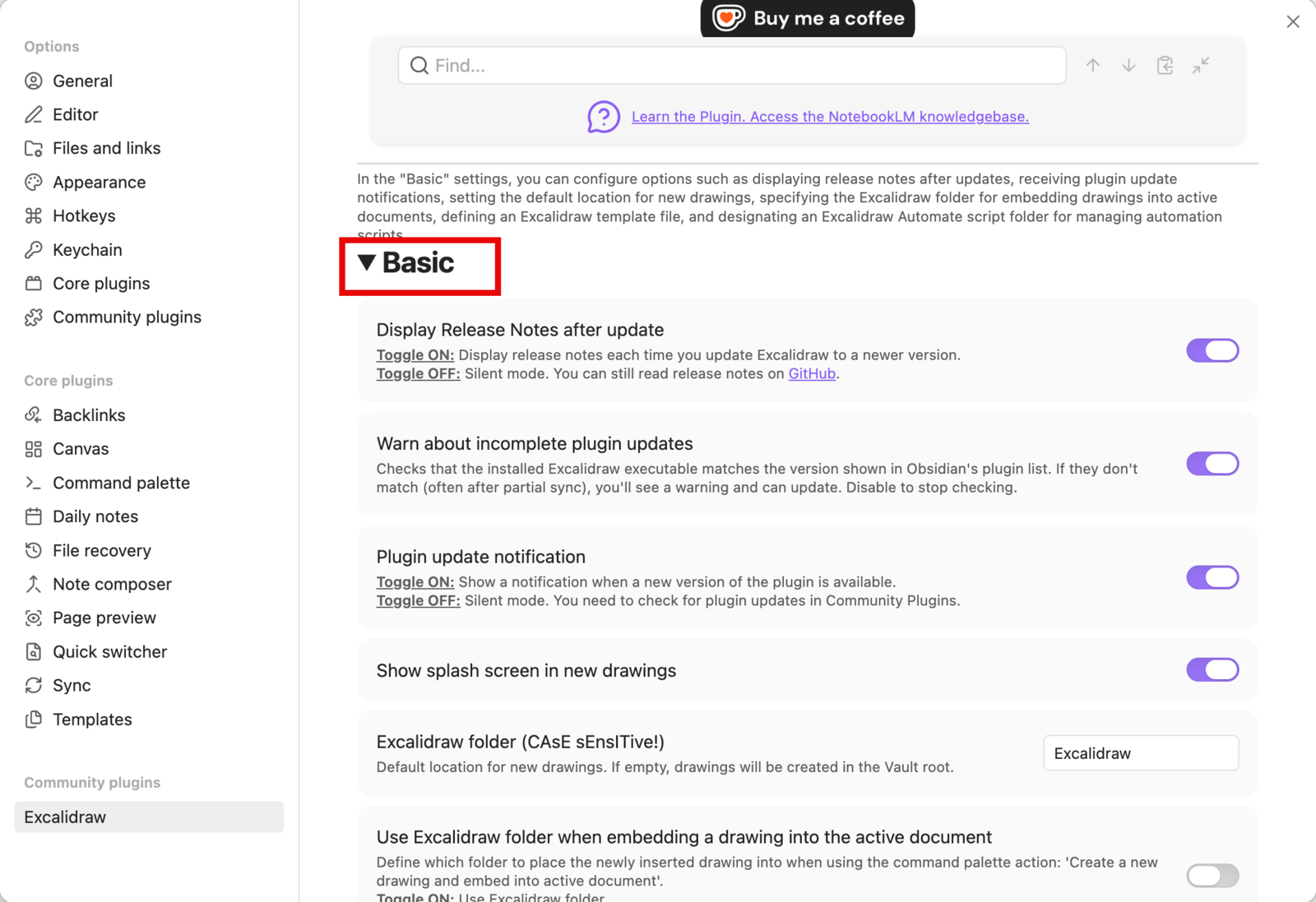
- 11
Set the Excalidraw folder — where your drawings are saved (e.g.
Excalidraw).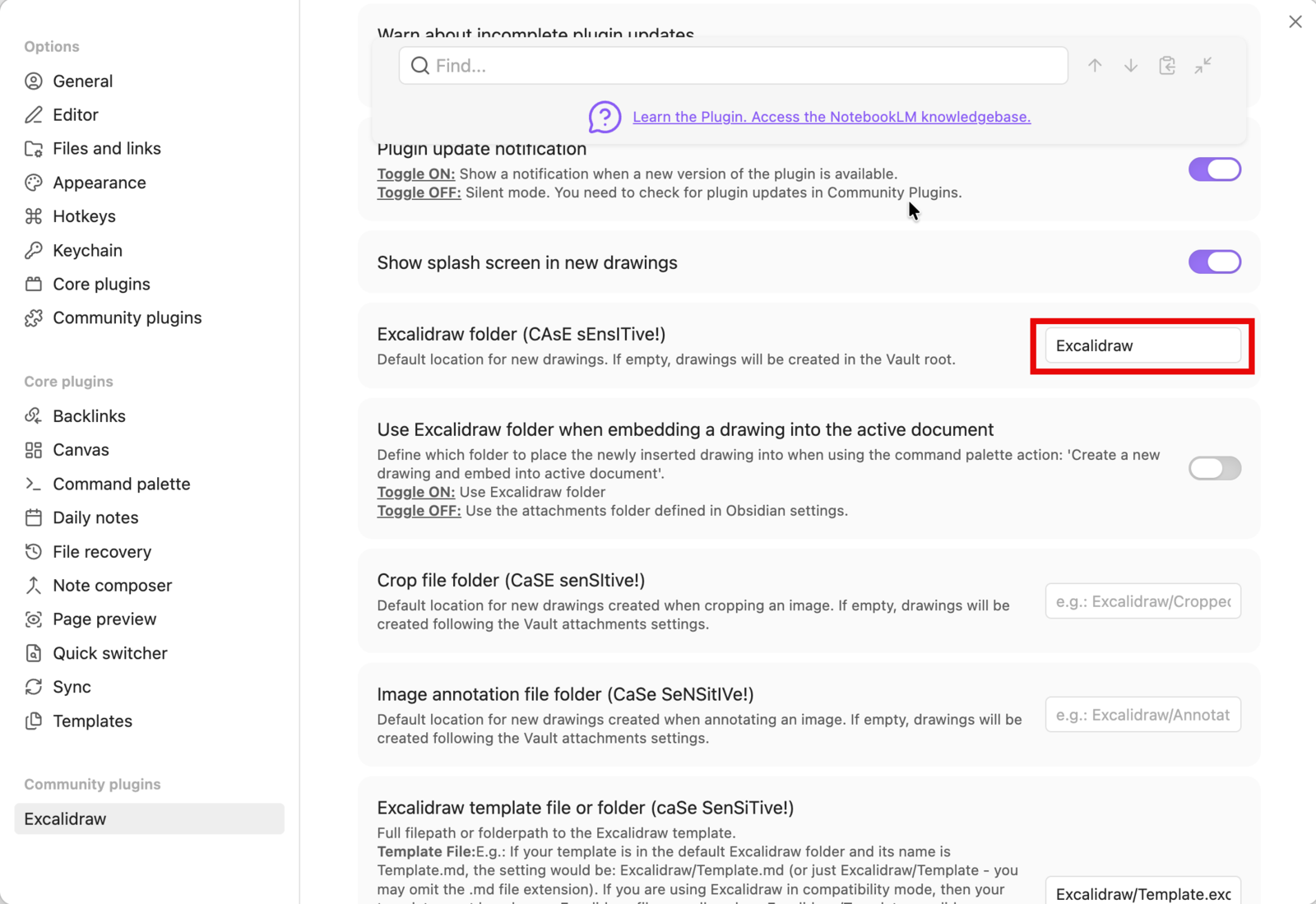
- 12
Set the Excalidraw Automate script folder to
Excalidraw/Scripts. This is where the Strip Director script goes.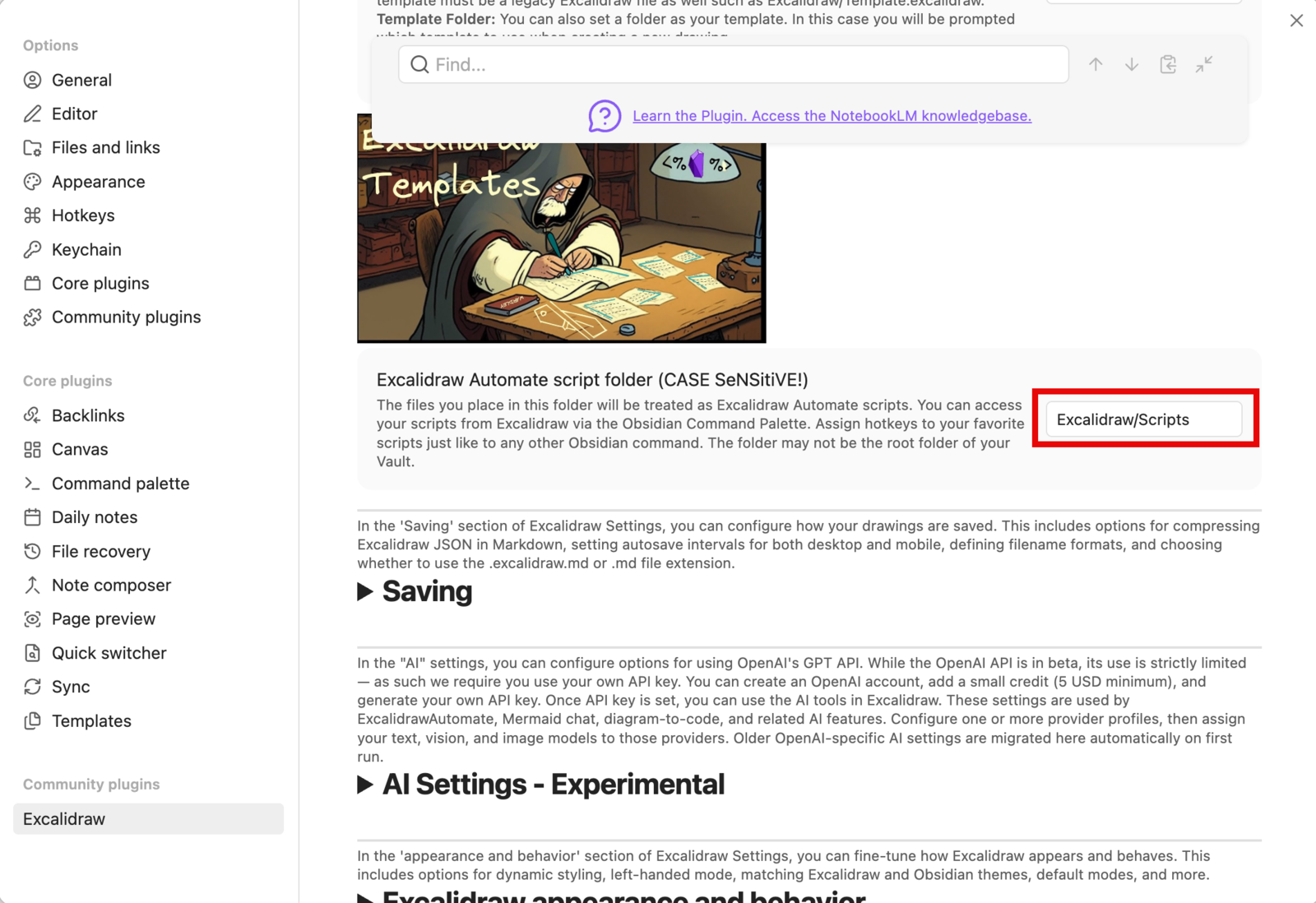
Install Comic Strip Director from the Script Library
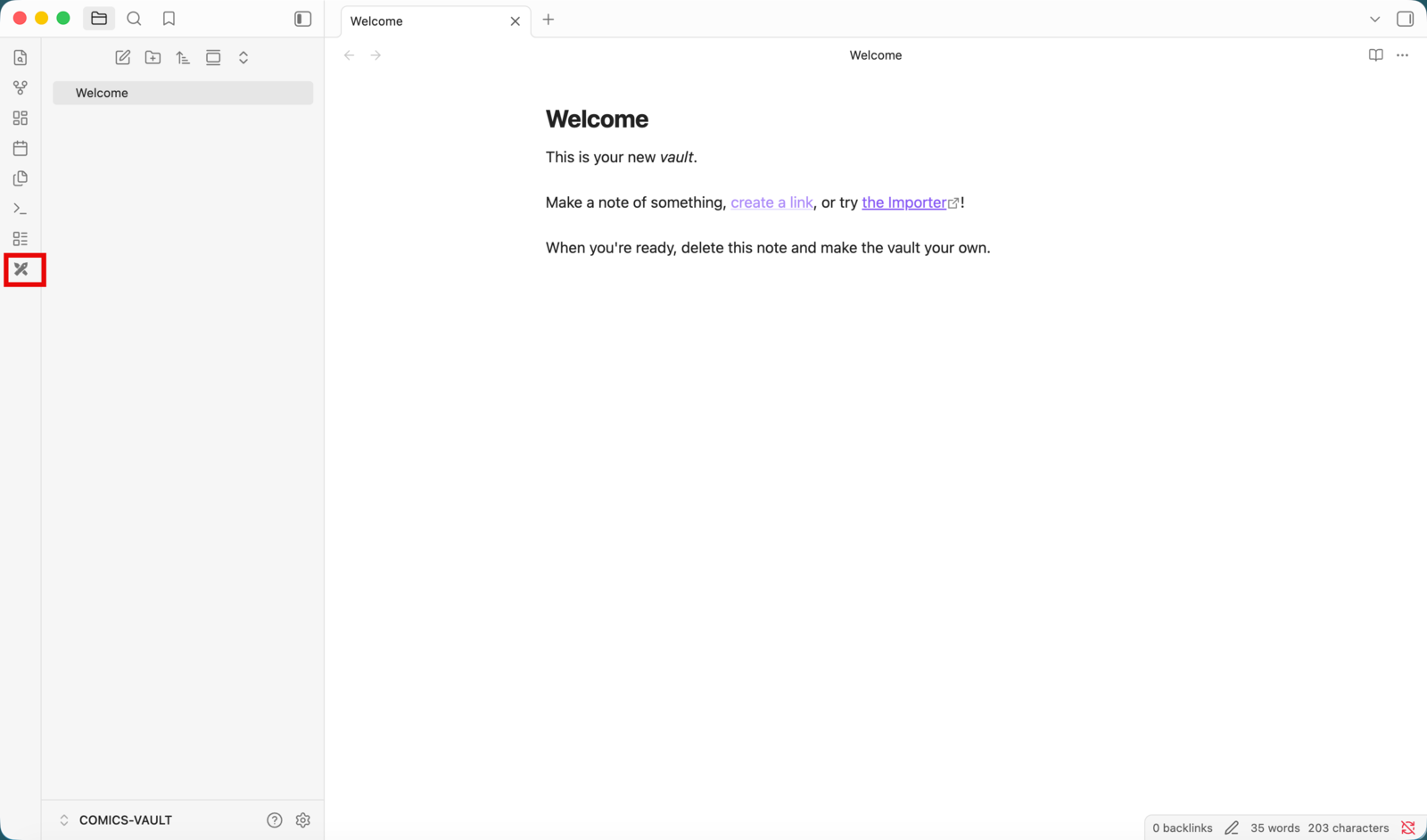
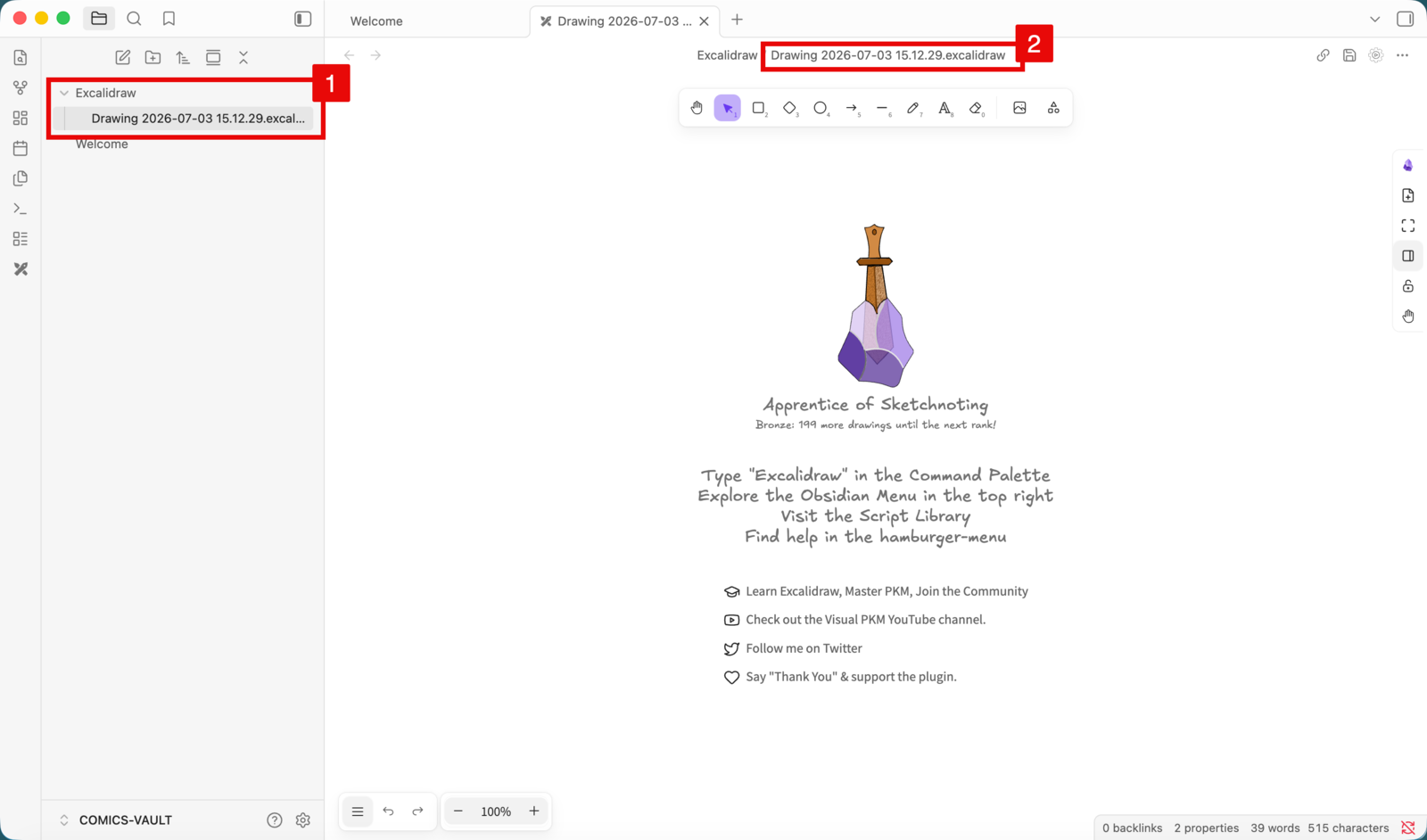
- 13
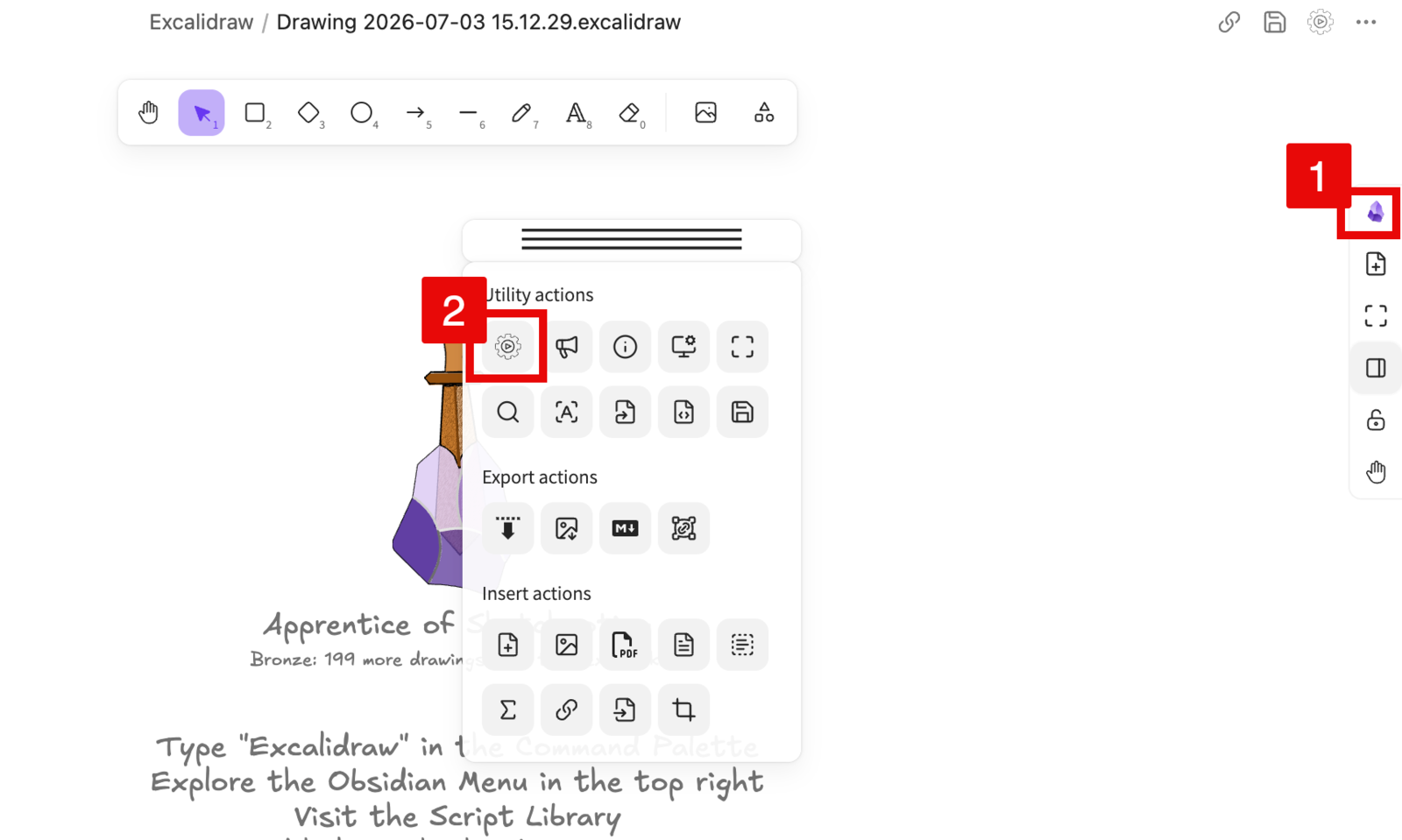
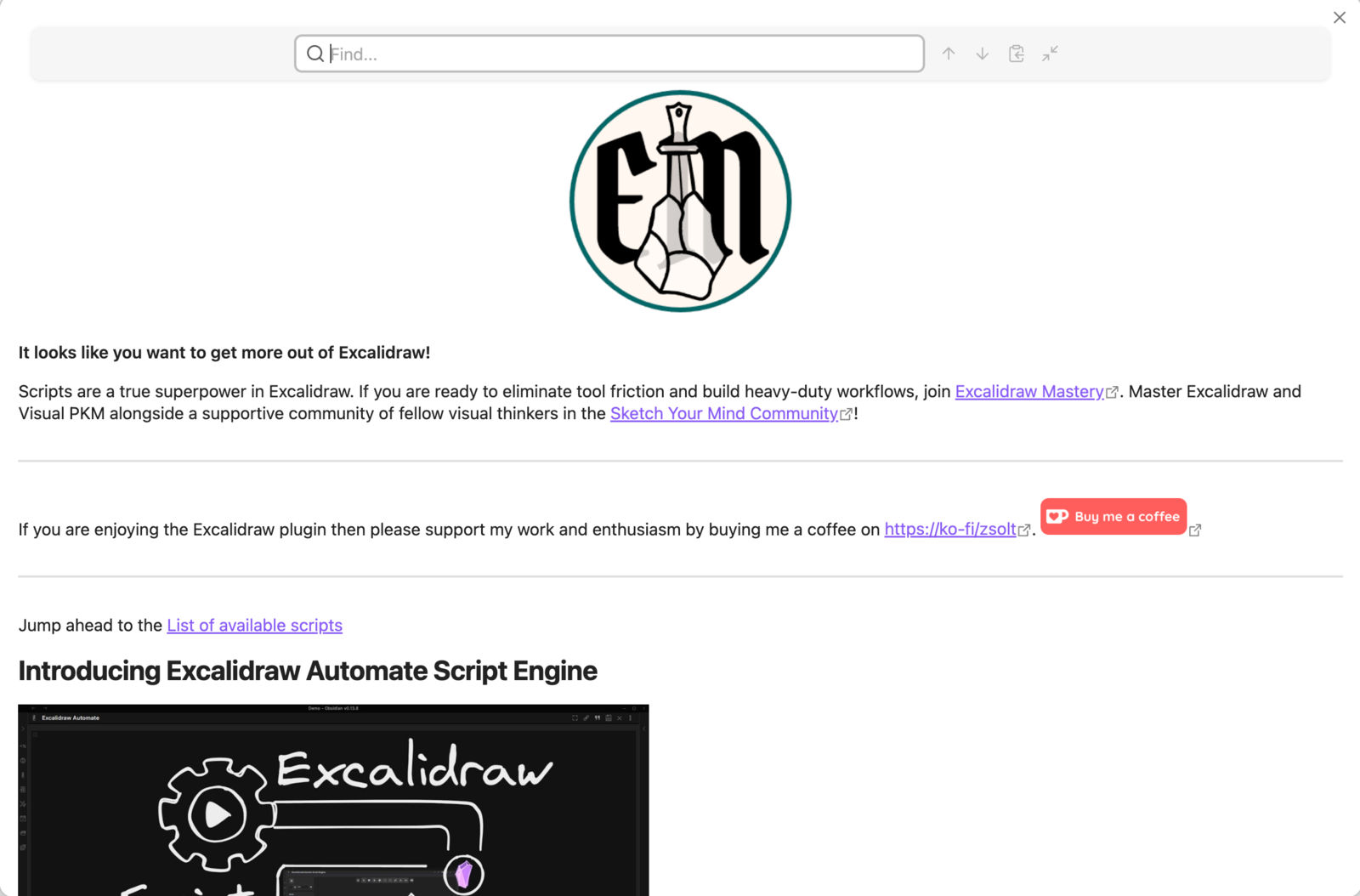
Create a new Excalidraw drawing, then open the Script Engine — the gear-with-play icon in the note header (top right).
- 14
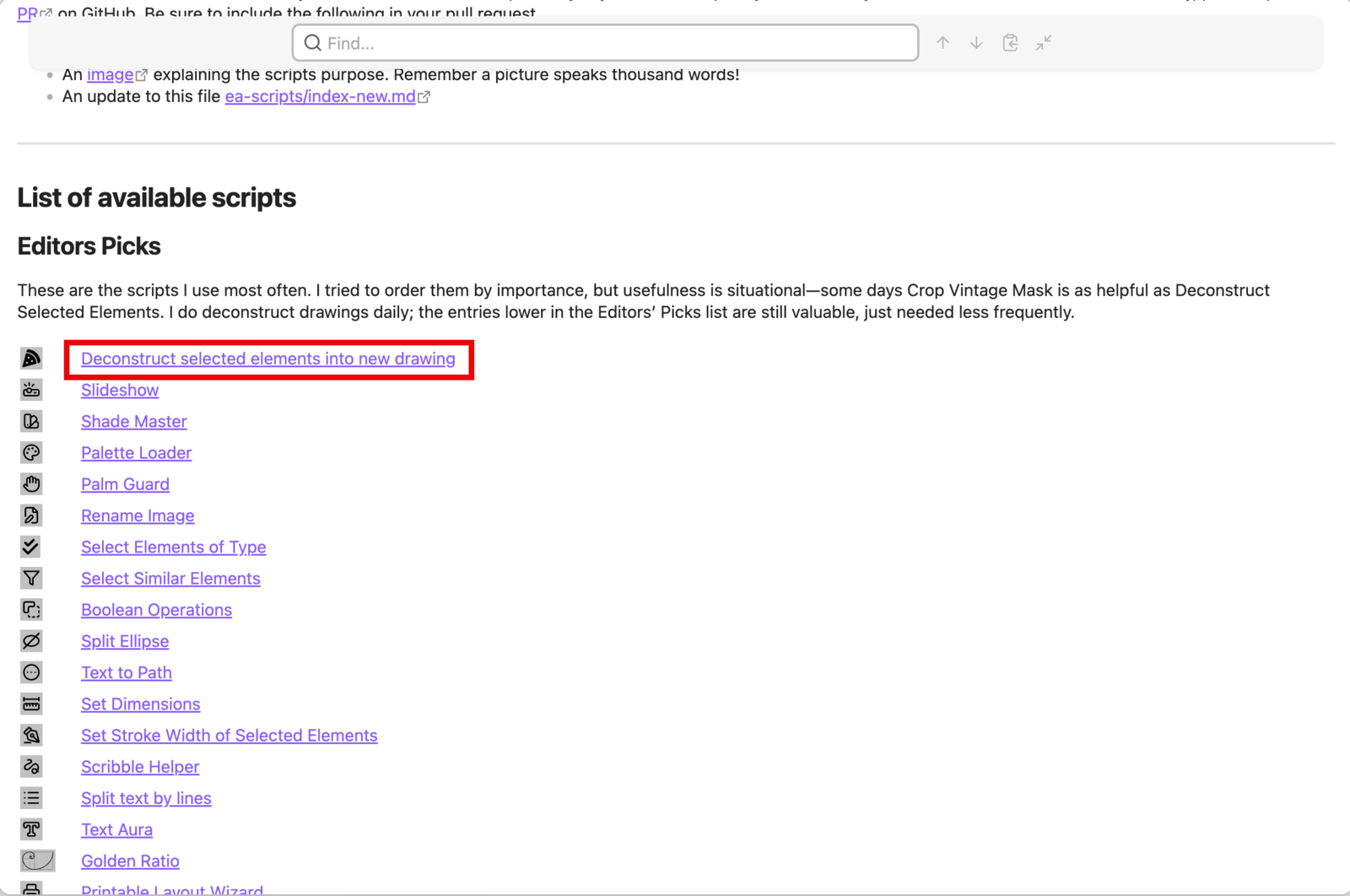
In the Script Library, search for comic strip director 1 and click the Comic Strip Director result 2.
- 15
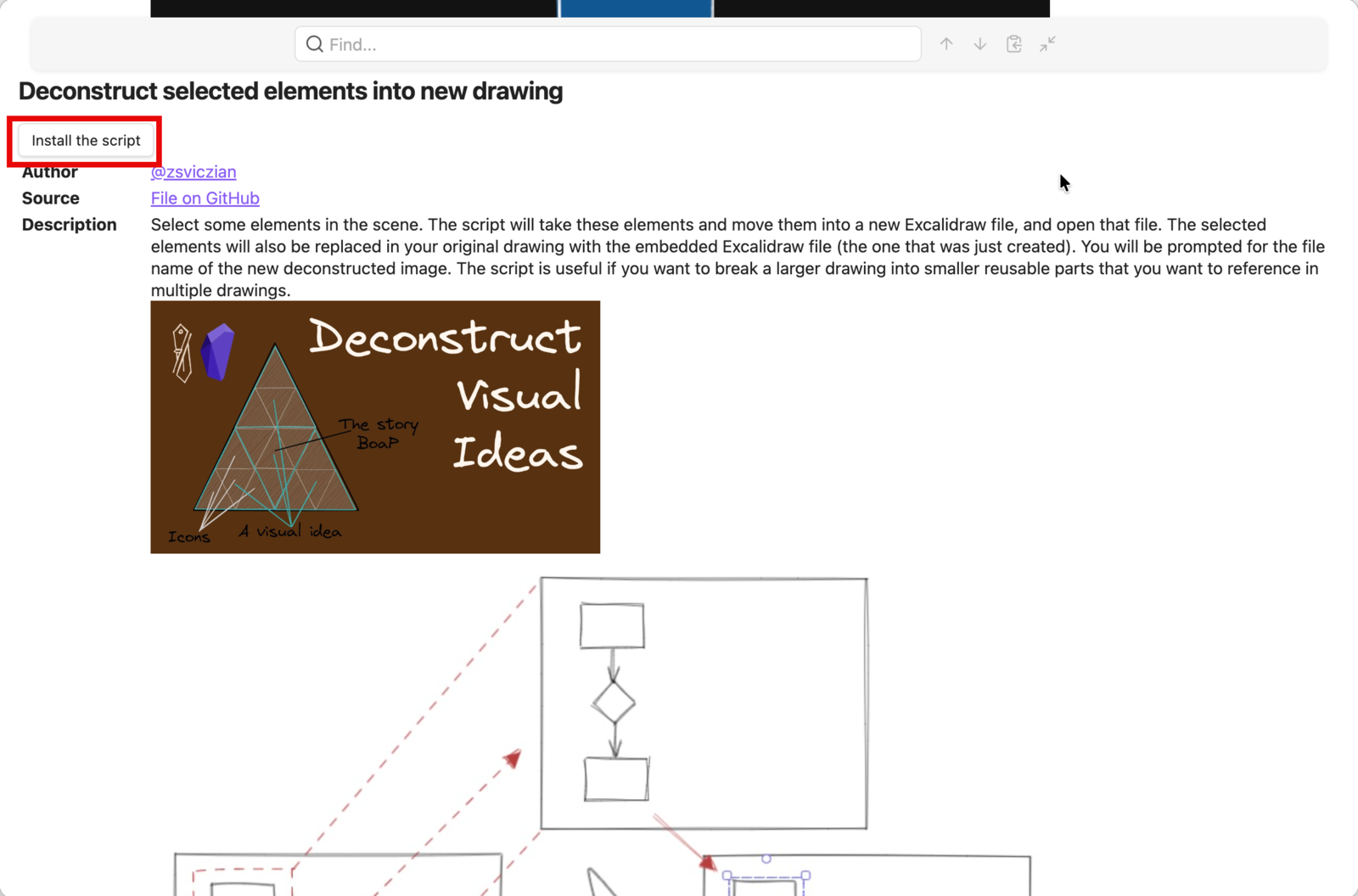
On the script’s page, click Install the script.
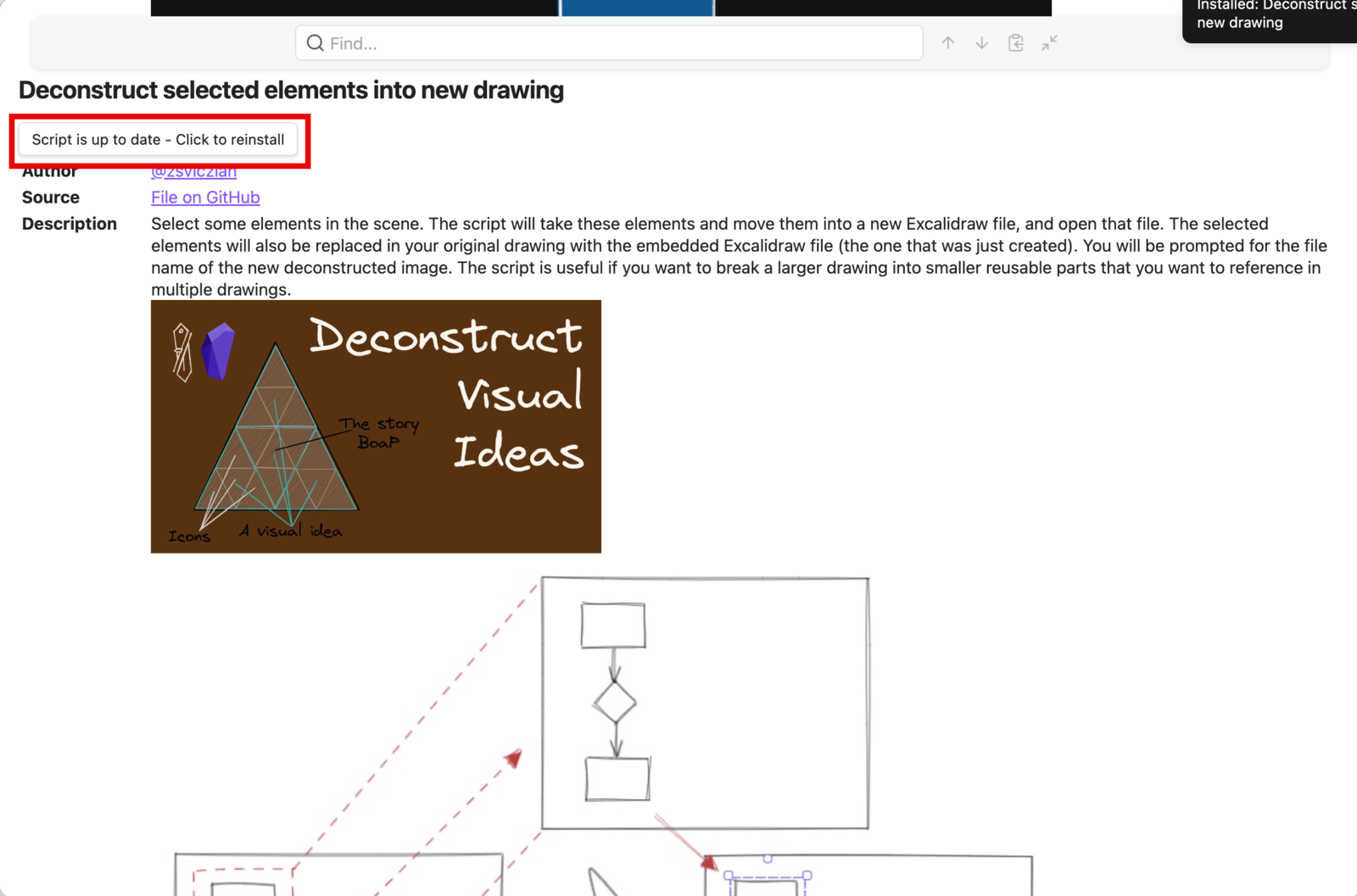
- 16
The button flips to Script is up to date — installed.
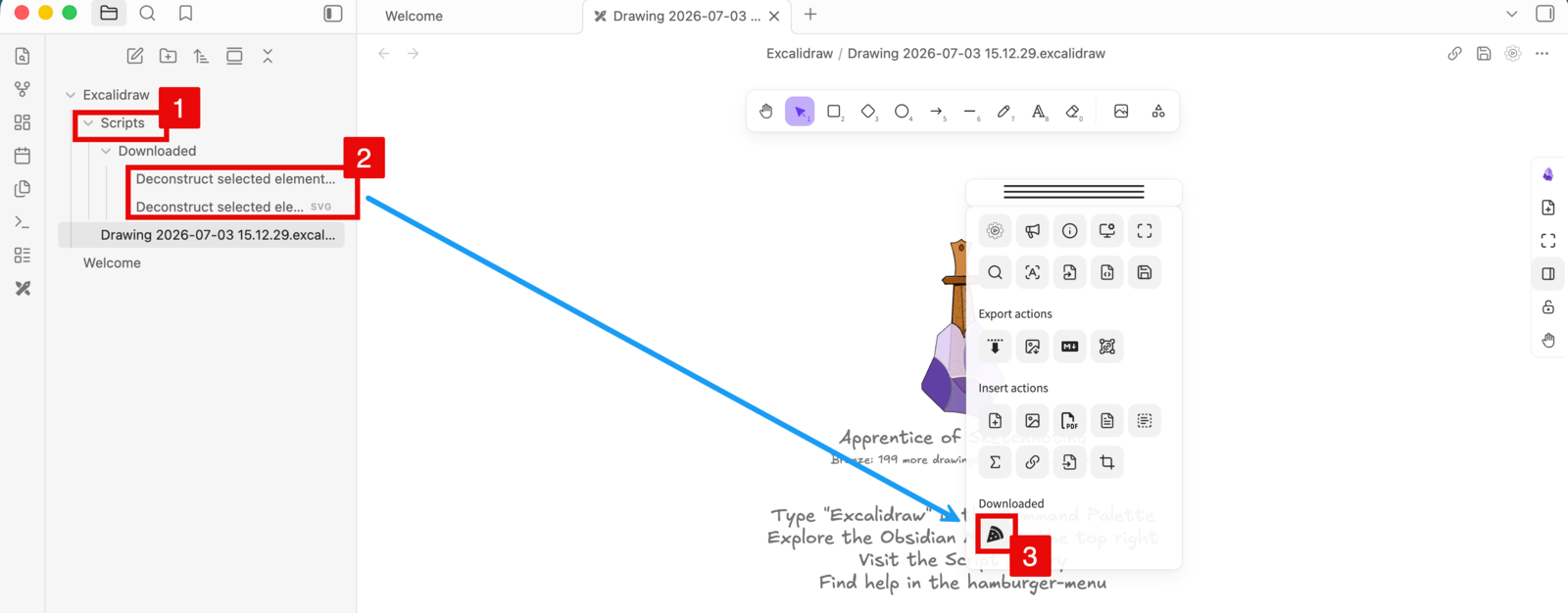
- 17
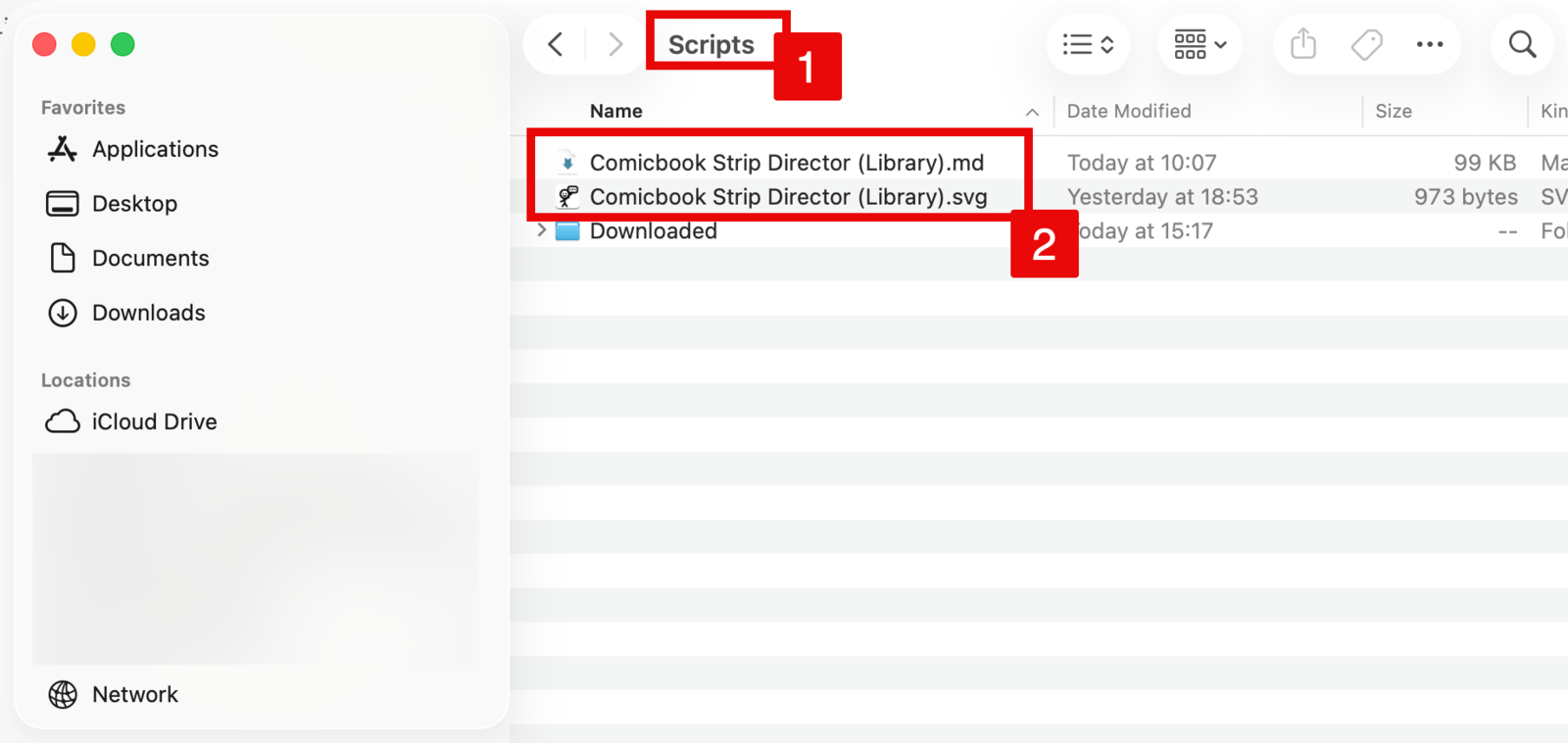
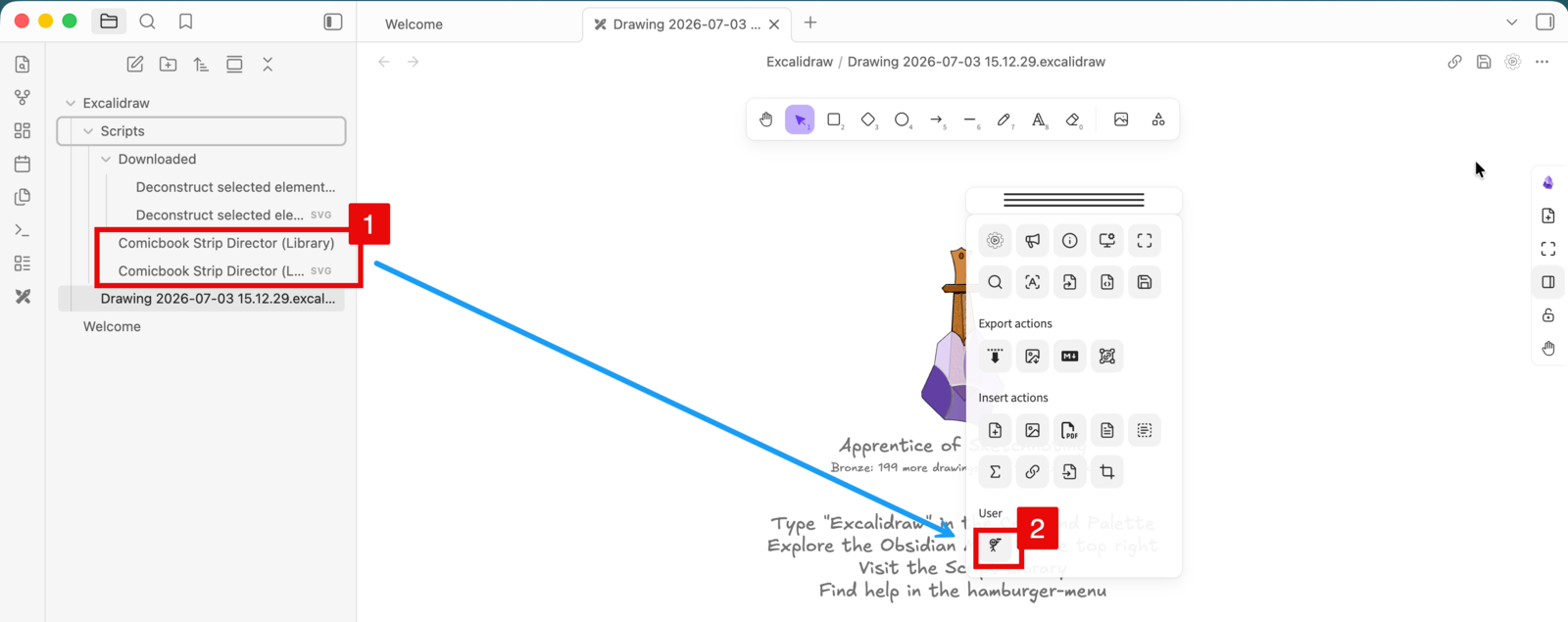
The script now sits under Scripts › Downloaded in your vault, and its icon appears in the Obsidian menu under Downloaded.
Get the free starter pack
- 18
Open the Obsidian menu → Downloaded → click the Comic Strip Director icon 1. The panel opens — click ⭐ Get the free starter pack 2 at the top.
- 19
It downloads and imports automatically — watch the progress 1 (Importing packs… figures 75/176). A Comic Strip Director library folder appears under Scripts 2.
- 20
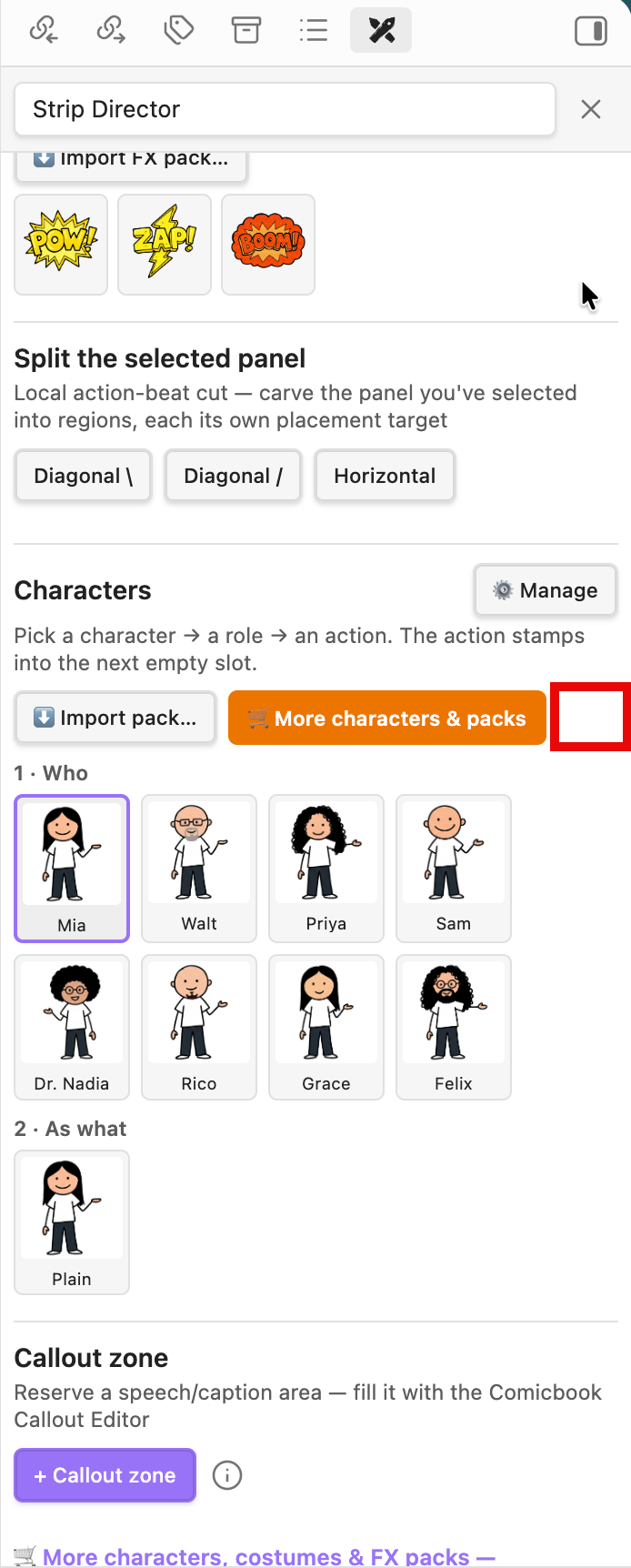
Done: POW! ZAP! BOOM! land in FX callouts 1, and the free cast of eight — Mia, Walt, Priya, Sam, Dr. Nadia, Rico, Grace & Felix — appears under 1 · Who 2.
Install a strip pack & make your first strip
- 21
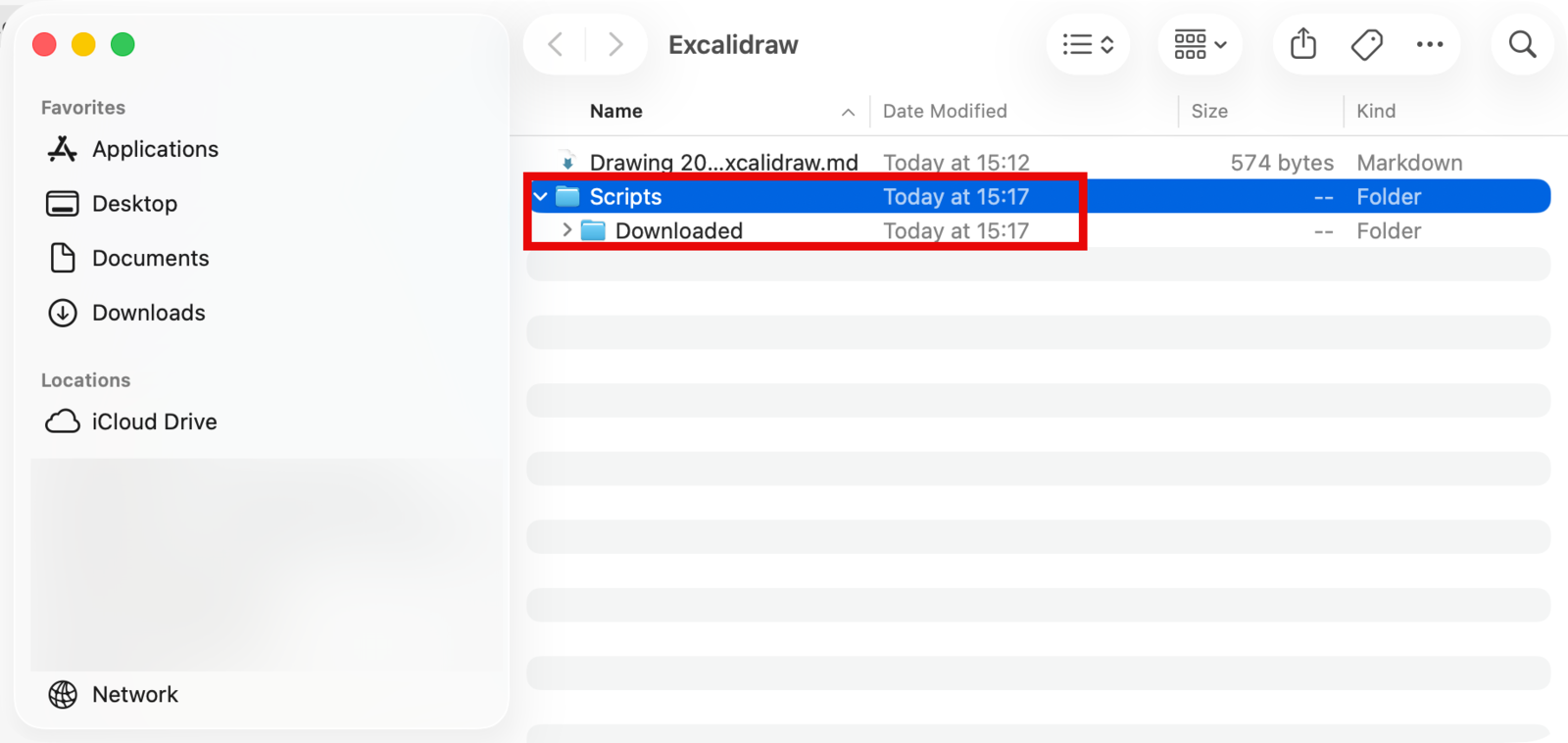
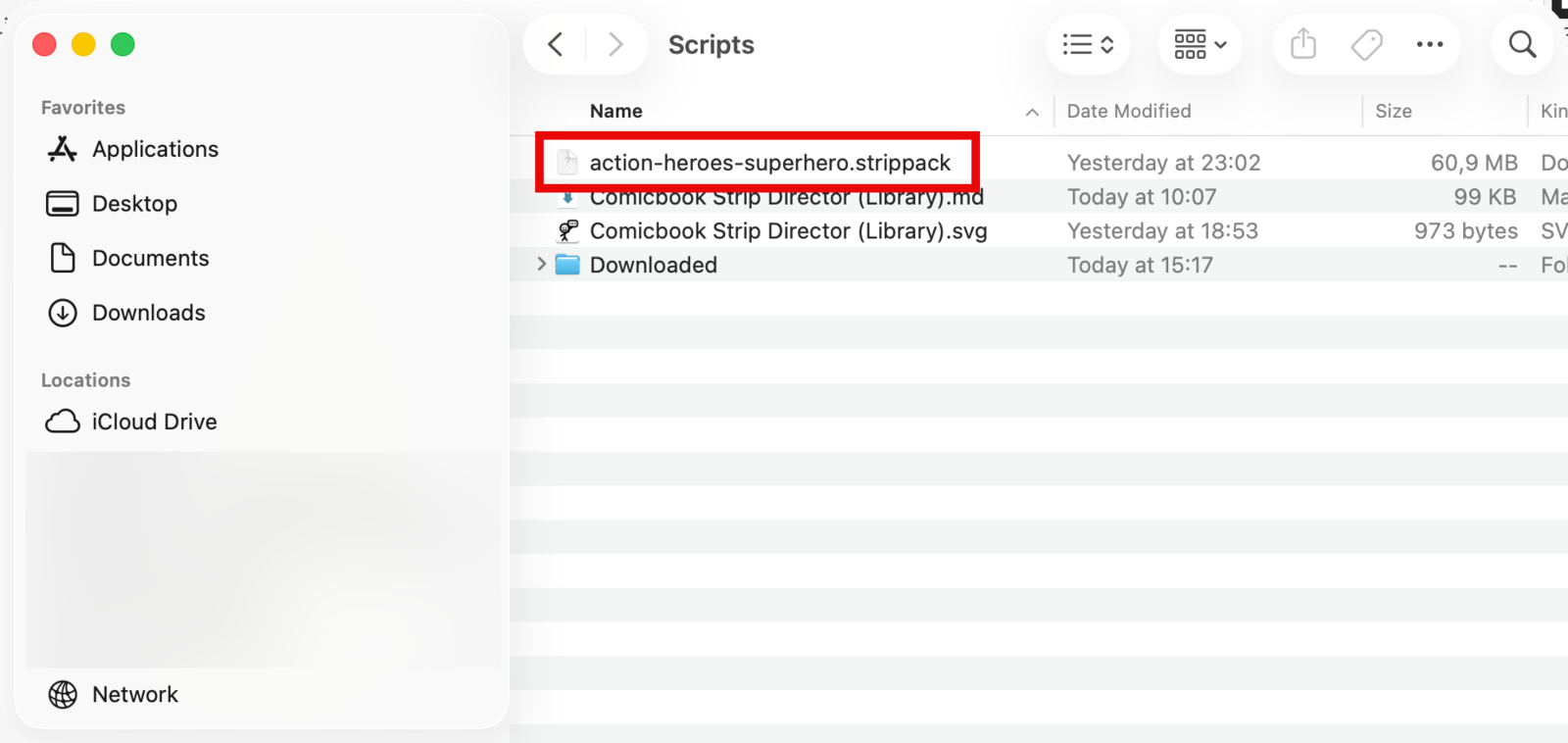
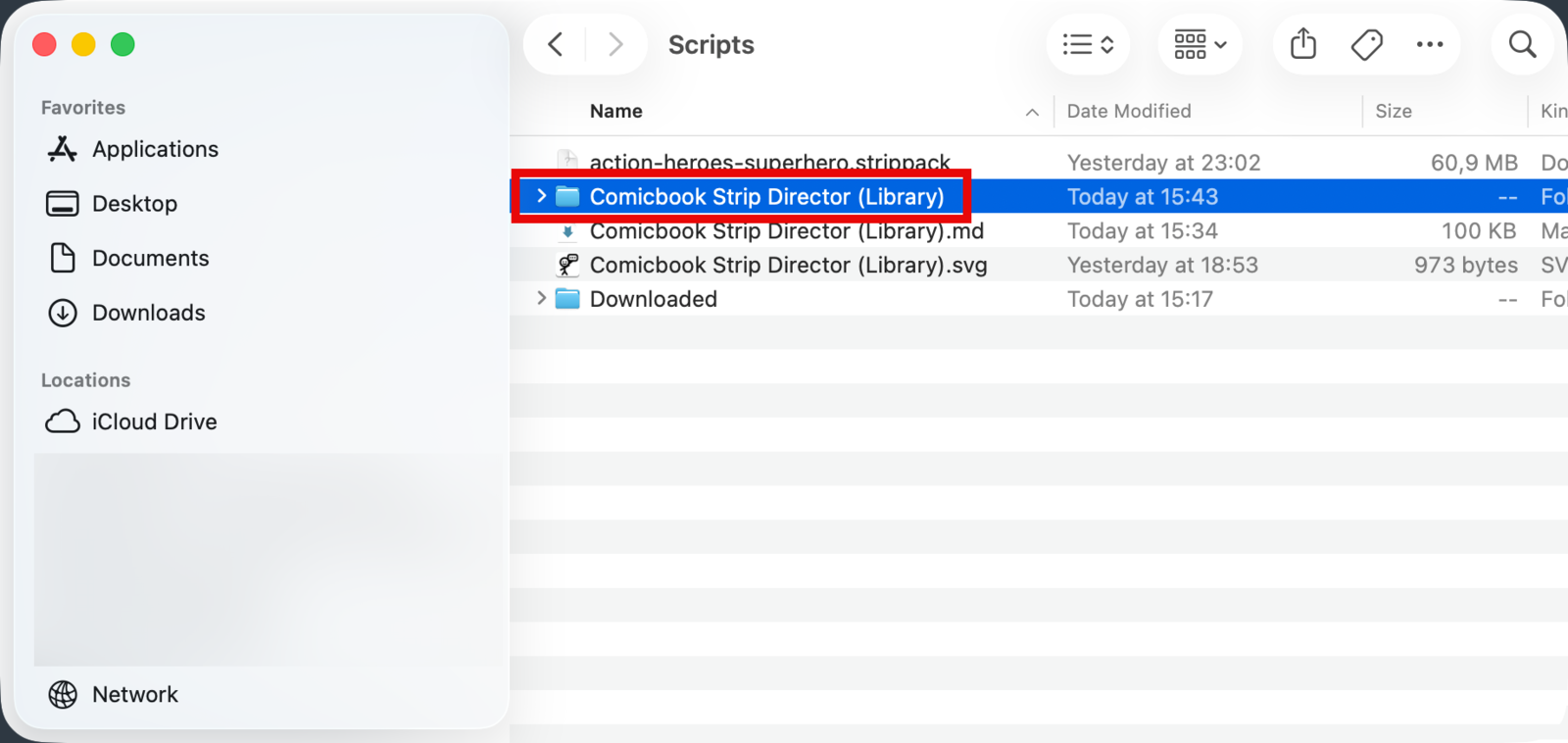
Bought a pack? Open the Excalidraw/Scripts folder 1 (right-click Scripts in Obsidian → Reveal in Finder) and copy the
.strippackfile(s) from your download into it 2.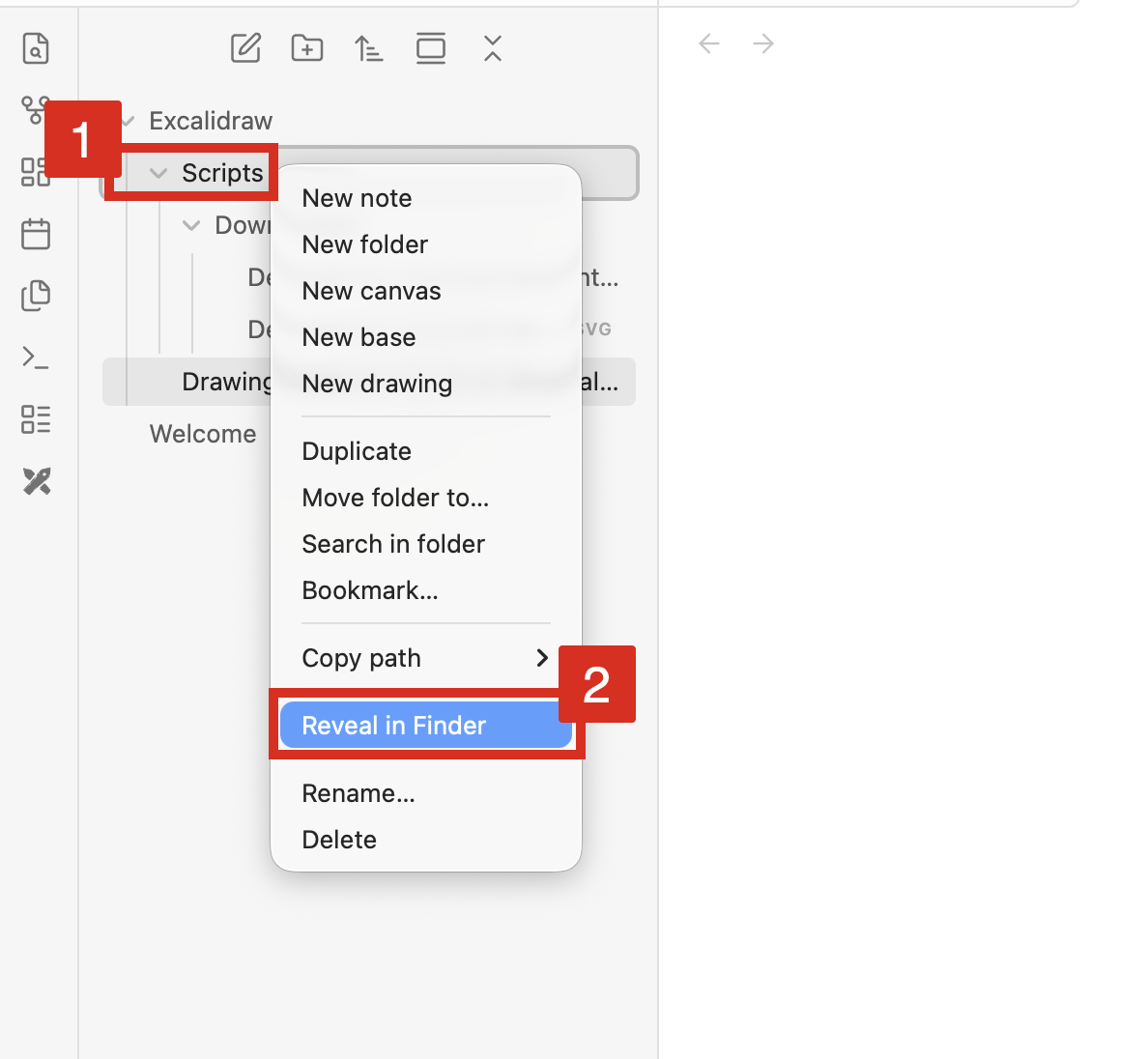
- 22
In the panel’s Characters section, click ⬇ Import pack…
- 23
The picker lists every strip pack it found in Scripts 1 — keep them selected and click Import selected 2.
- 24
The import runs pack by pack — big packs take a minute; the section unlocks when it finishes.
- 25
Your new pack shows as a tab 1 (e.g. Action Heroes Pack · 1232). Pick who 2 (Mia), as what 3 (Boxer), then doing what 4 (Waving).
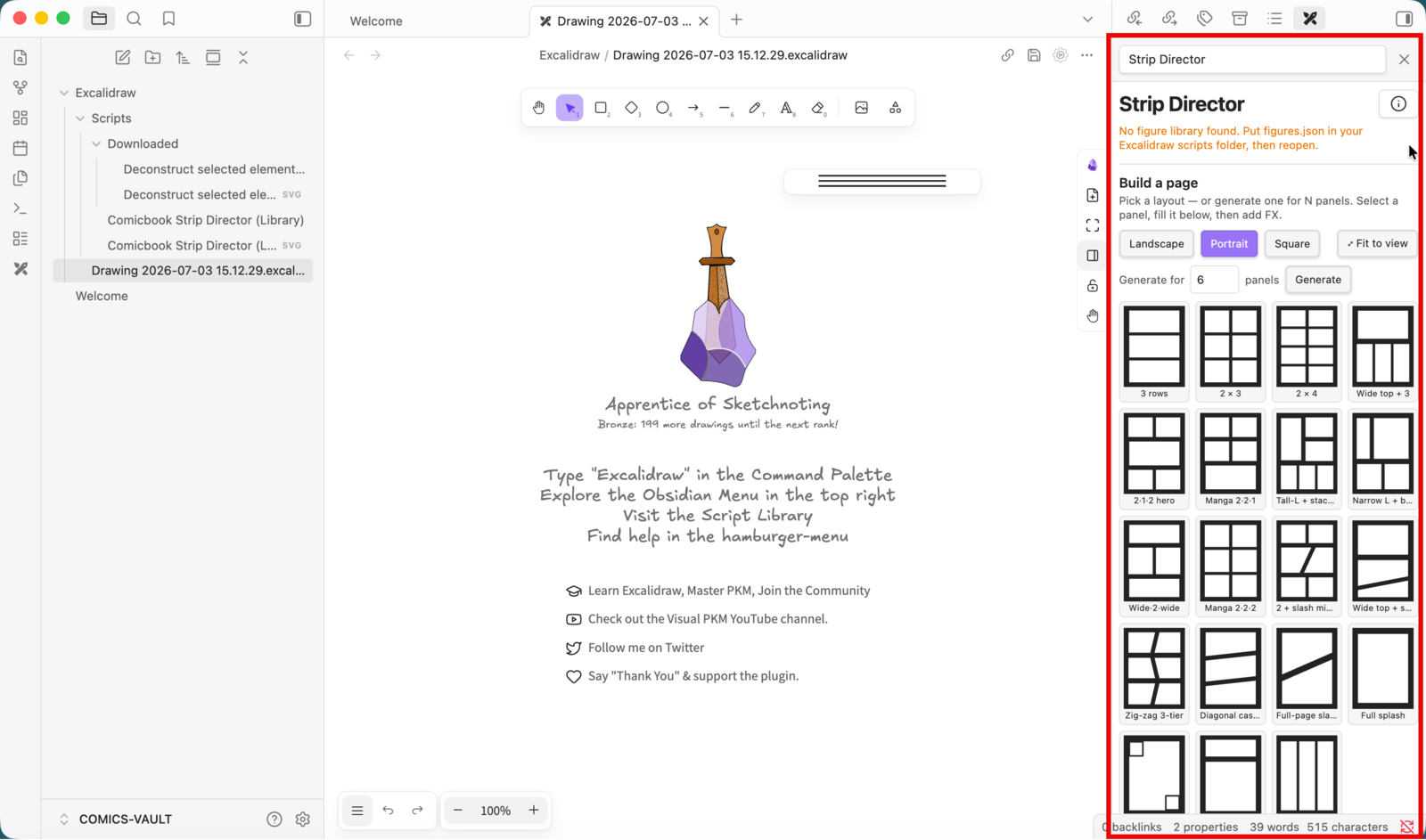
- 26
Time to build: under Build a page, pick a layout 1 (e.g. 2 × 3) — the panels are drawn on your page 2.
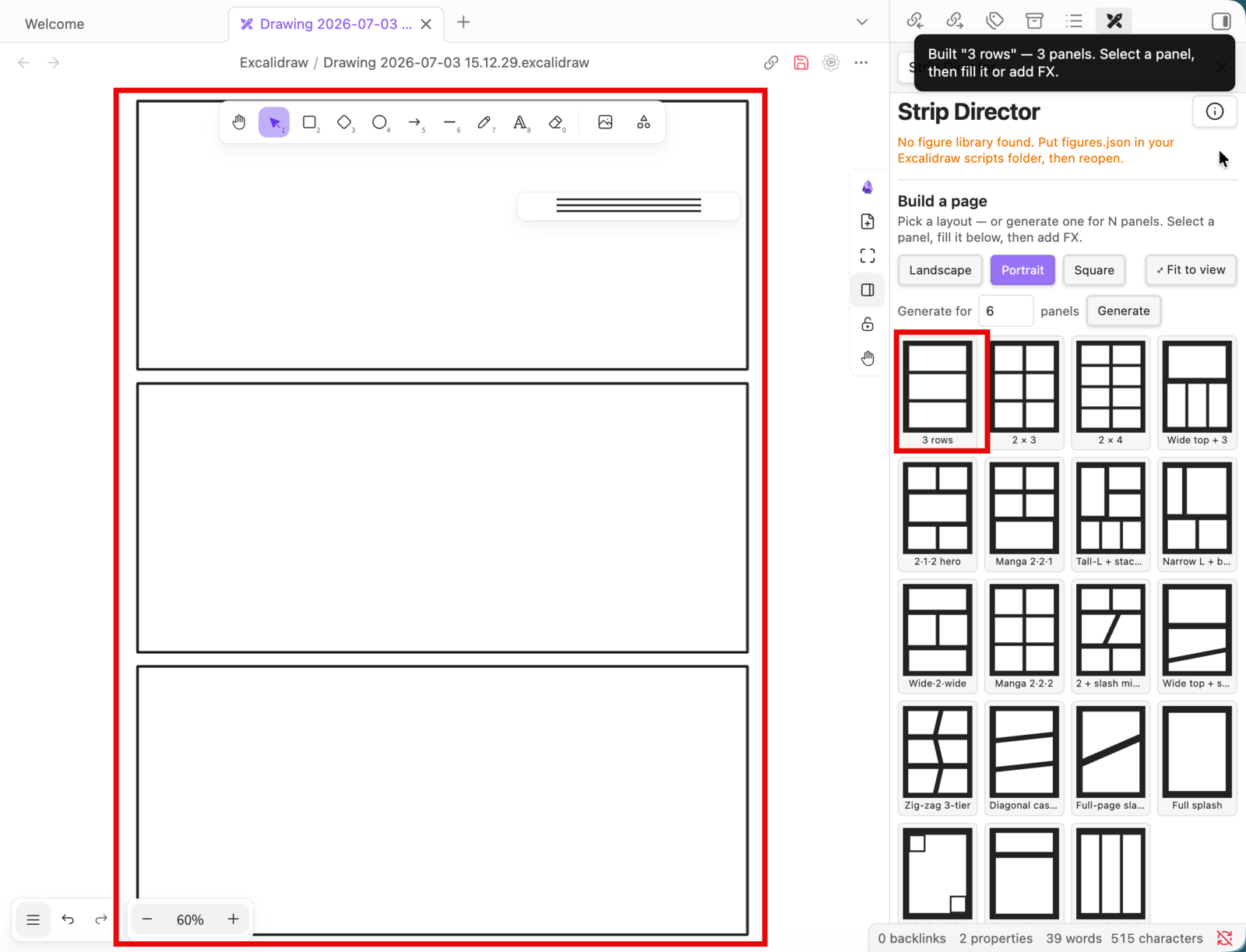
- 27
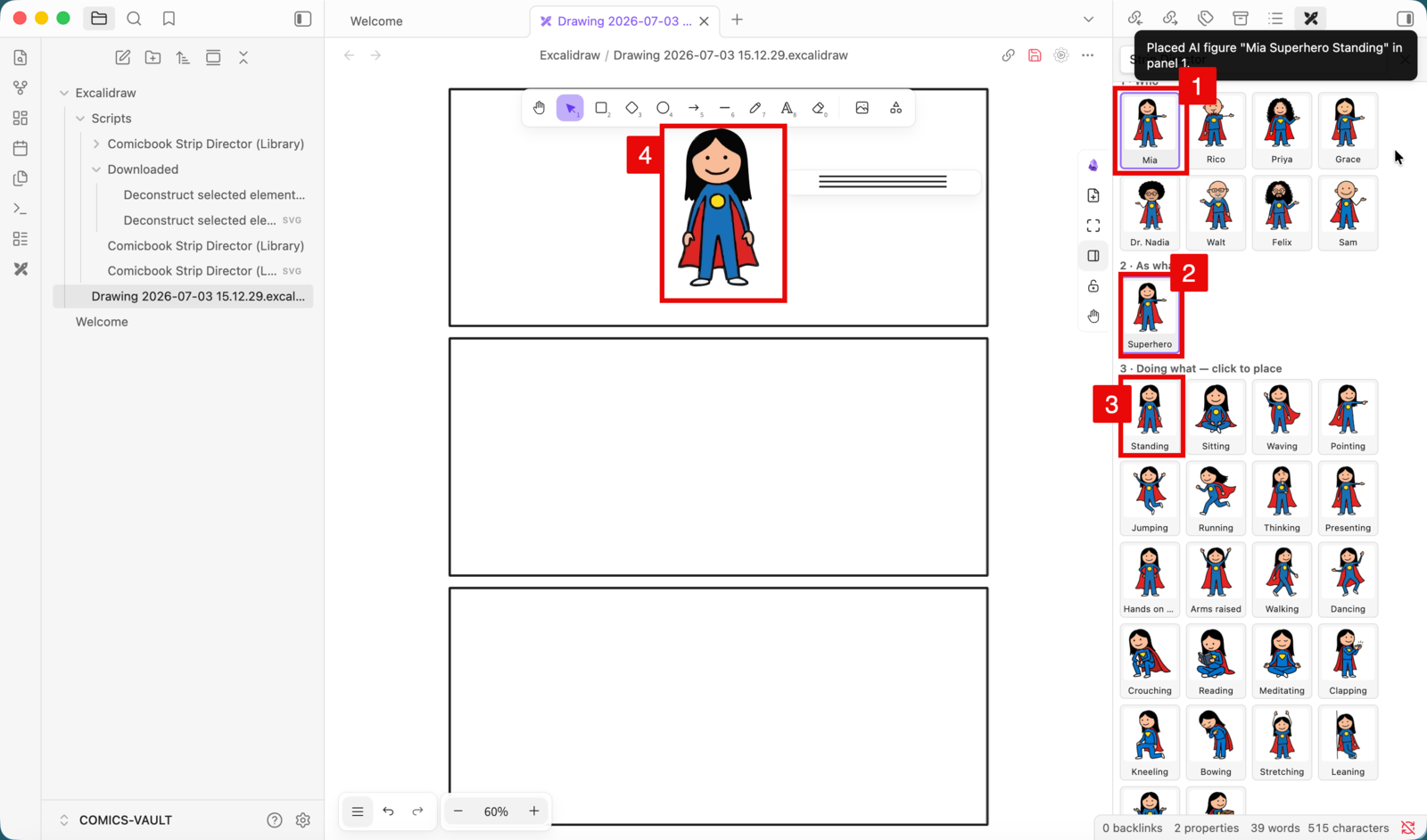
Select a panel and click an action — the figure stamps straight into it. Repeat per panel: here Mia 1 as Boxer 2 filled the whole page with the actions 3–7. 🎉
- 28
Housekeeping: once imported, select the
.strippackfiles in Scripts 1 and Move to Trash 2 — everything now lives in the script’s library folder.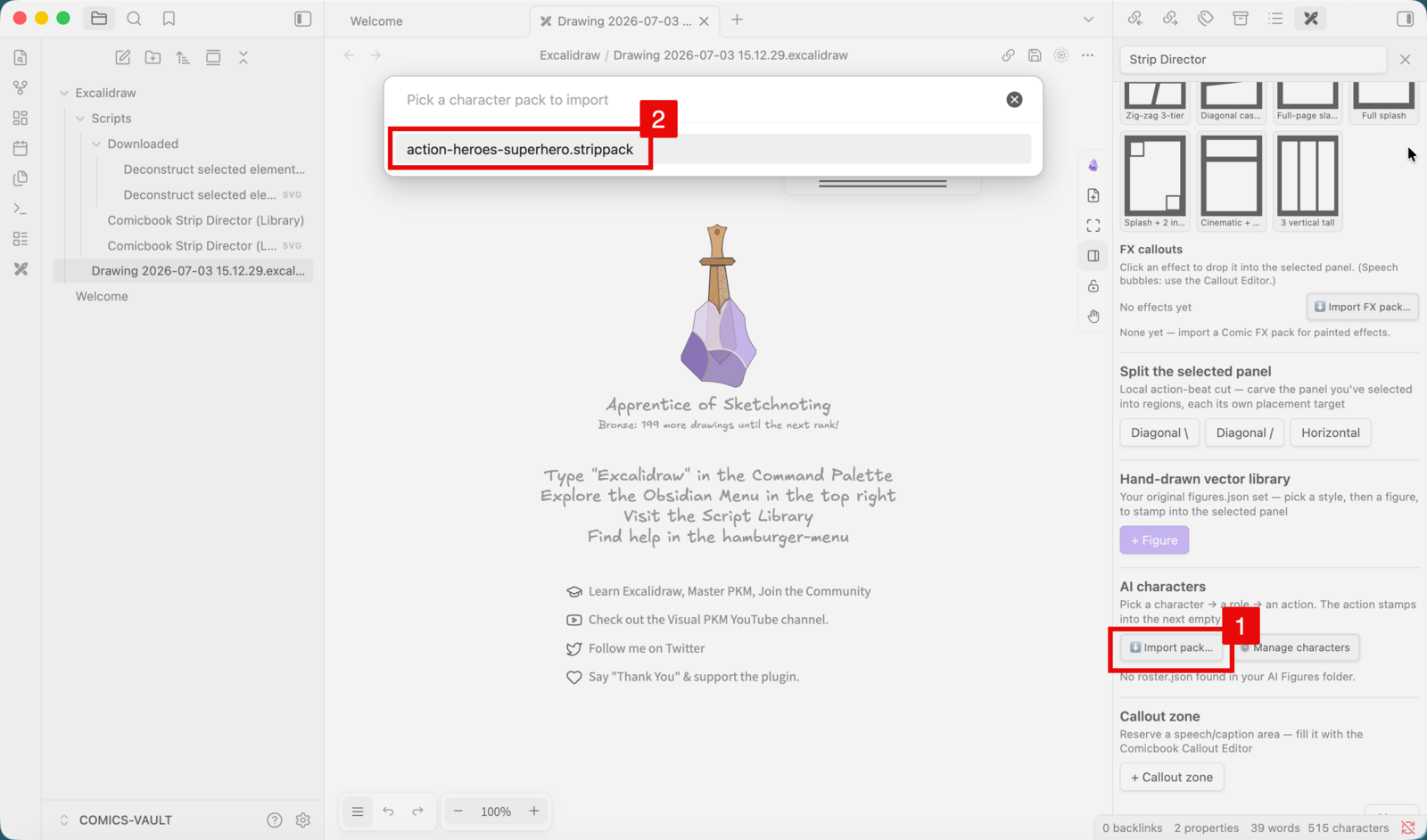
Remove a pack
- 29
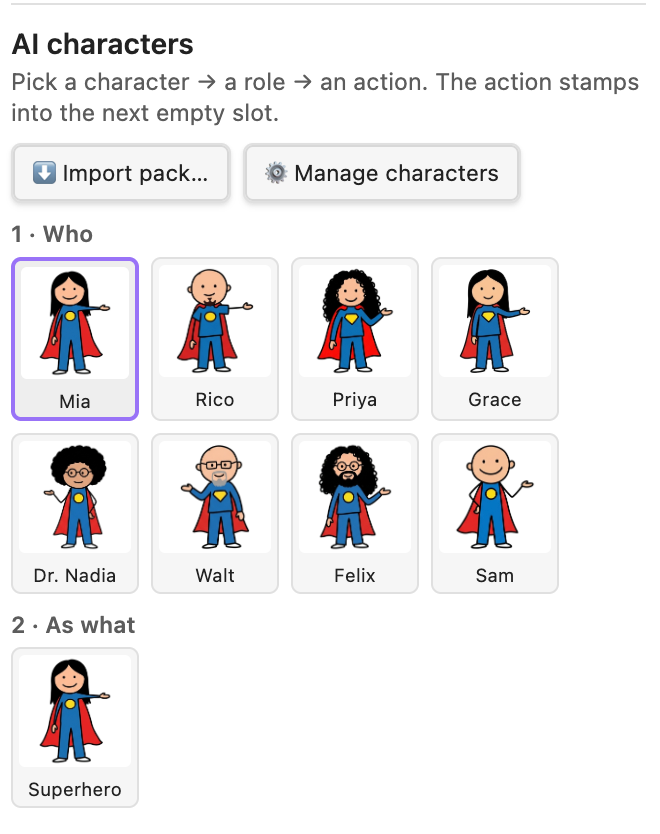
Say a pack has to go — here the free Summer Free sampler: it shows as a pack tab 1 with its characters in the 1 · Who grid 2.
- 30
In the Characters section, click ⚙ Manage — the management panel opens, with an Installed packs list at the bottom.
- 31
Find the pack under Installed packs and click 🗑 Remove next to it.
- 32
Confirm in the Remove pack? dialog. Images not shared with another installed pack are deleted from disk — and you can re-import the
.strippackany time.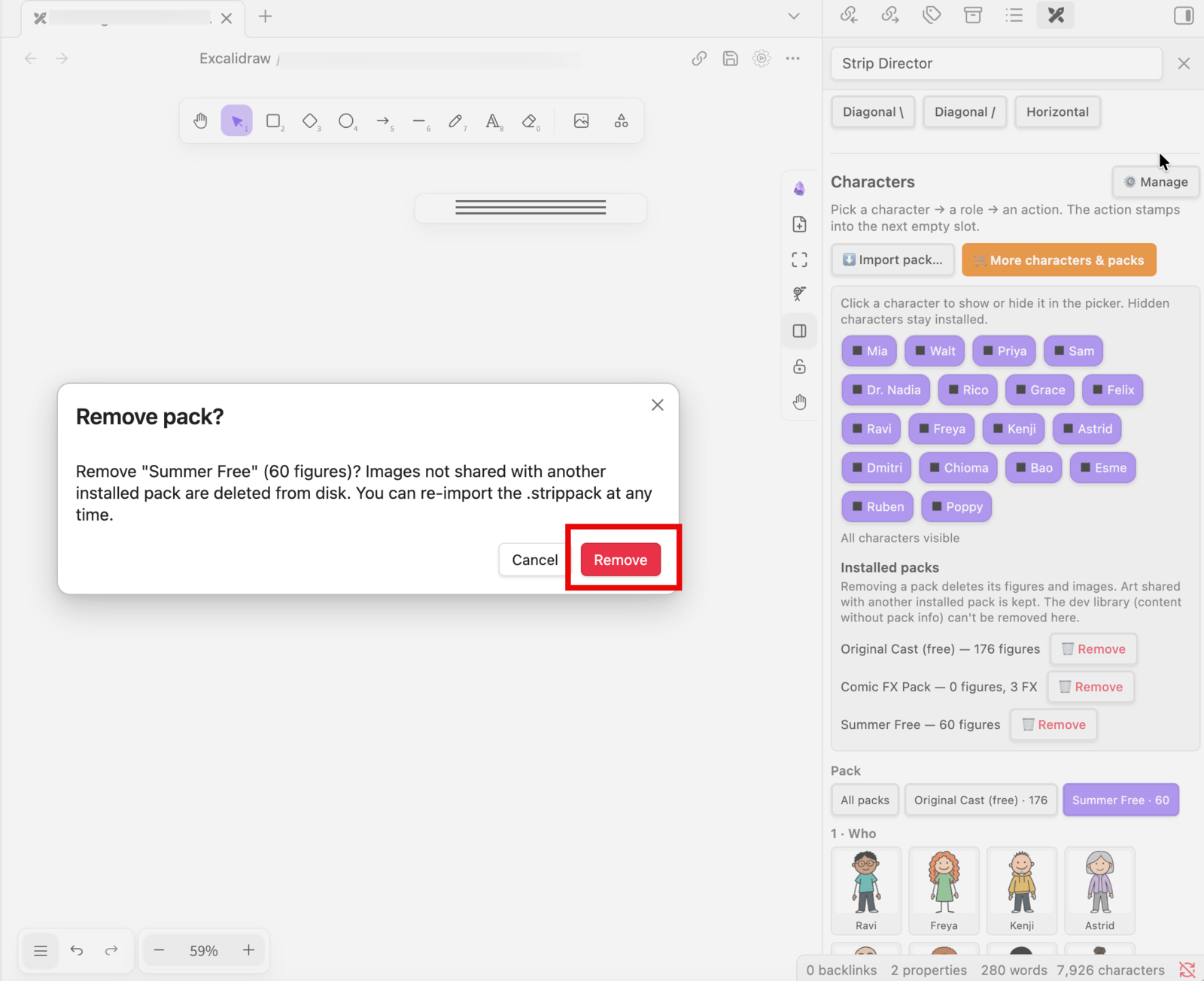
- 33
Gone: the pack tab disappears and its characters leave the Who grid. Your other packs are untouched.
Using Obsidian Sync? Exclude the data folder <Excalidraw>/Scripts/Comic Strip Director (Library) from sync (older installs: Comic Strip Director or Comicbook Strip Director (Library)). Imported packs contain a lot of images — they can eat your Obsidian Sync space and make Obsidian slower.
After importing a strip pack, close and reopen Obsidian so file indexing can do a good job.
No Obsidian? The packs and free layouts are plain PNG + SVG — they drop into Figma, Miro, Canva, Google Drawings, PowerPoint, anything.